




Here's how to add the order widget to WordPress-built websites.
Here's how to add the order widget to WordPress-built websites.
To publish the "Show menu and order" button on the restaurant's legacy WordPress website, the system provides an HTML code.
When this is added to the website, the "See MENU & Order" button will appear, enabling WordPress ordering. This is accessible in the admin panel under "Publishing" -> "Legacy Website".
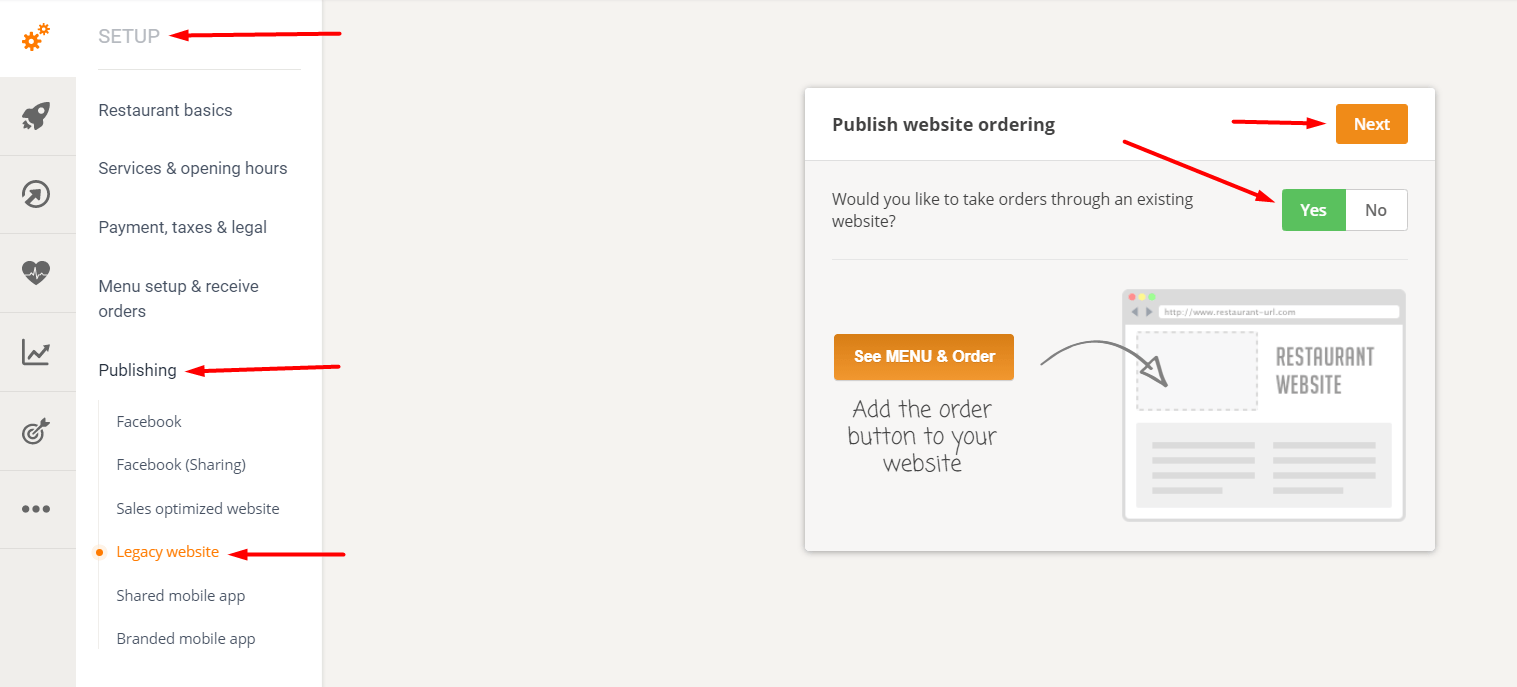
To generate the HTML code for the "View Menu & Order" button, go to the Setup-> Publishing-> Legacy Website section in the web admin area and click "Yes" as follows:
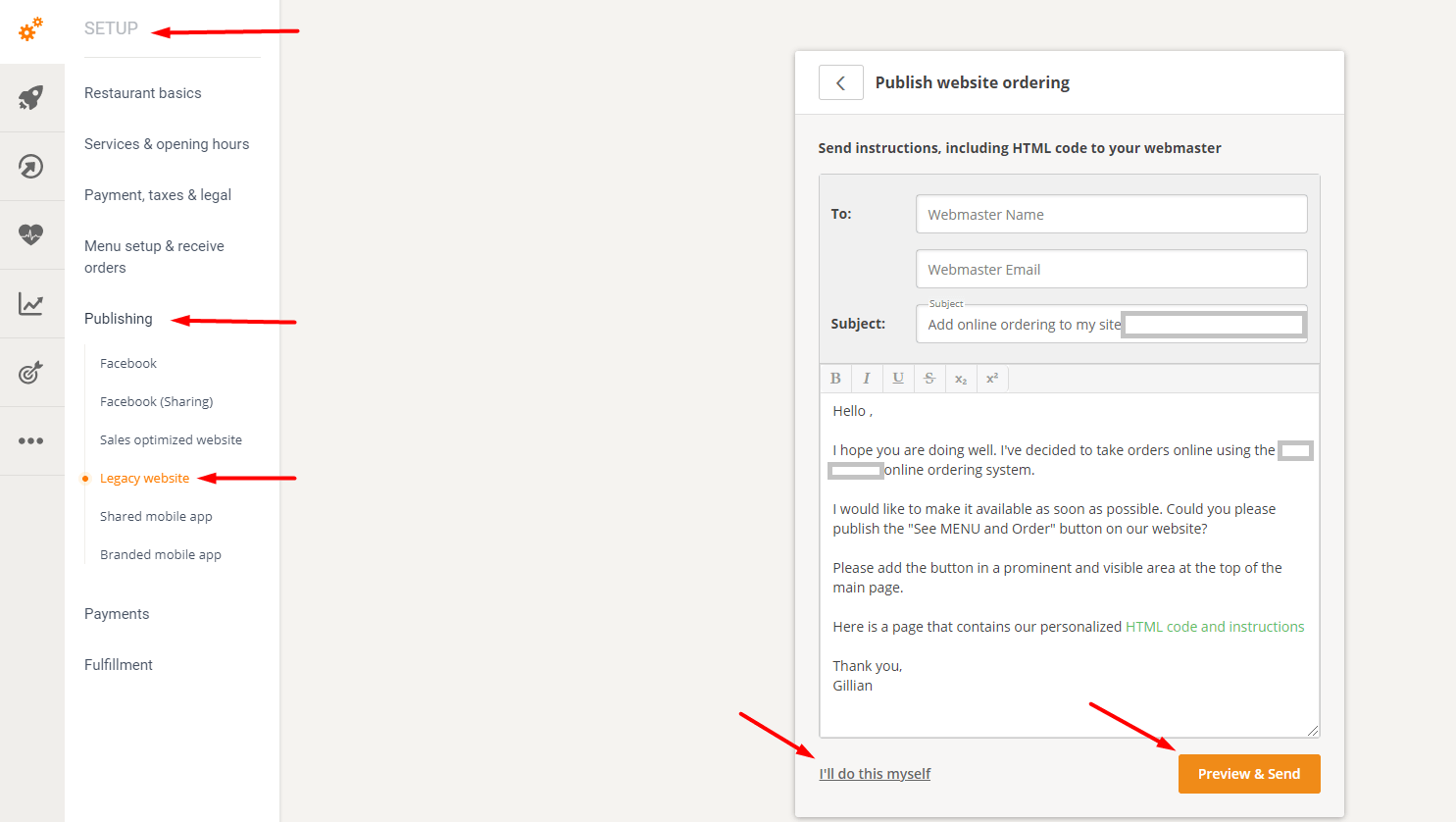
Review the content of the email and modify it as needed, enter the email address to which it should be sent (webmaster/developer of the restaurant's website) and click on "Preview and send" or "I'll do it myself":
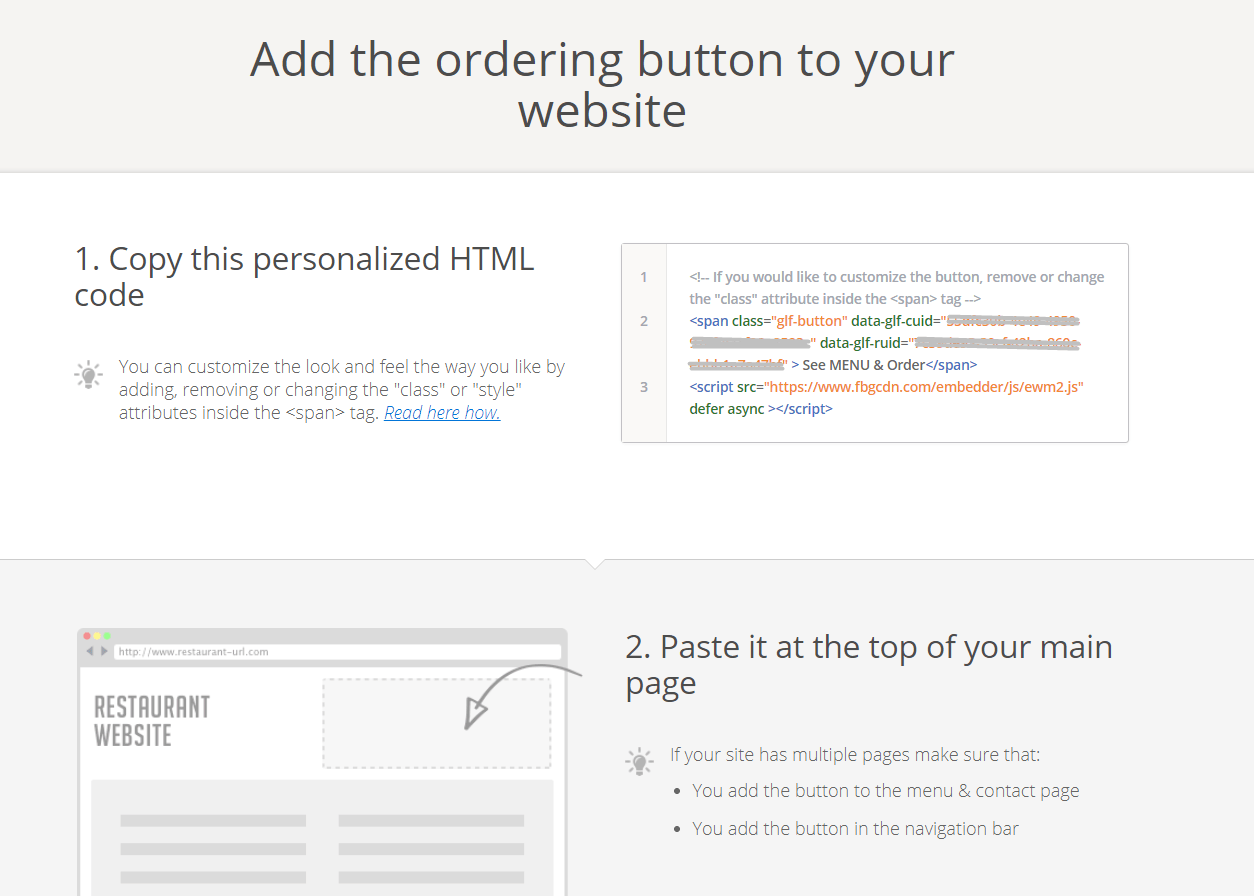
A click on “I’ll do it myself” leads to a screen from which the code can be copied and pasted into the code of the restaurant website:
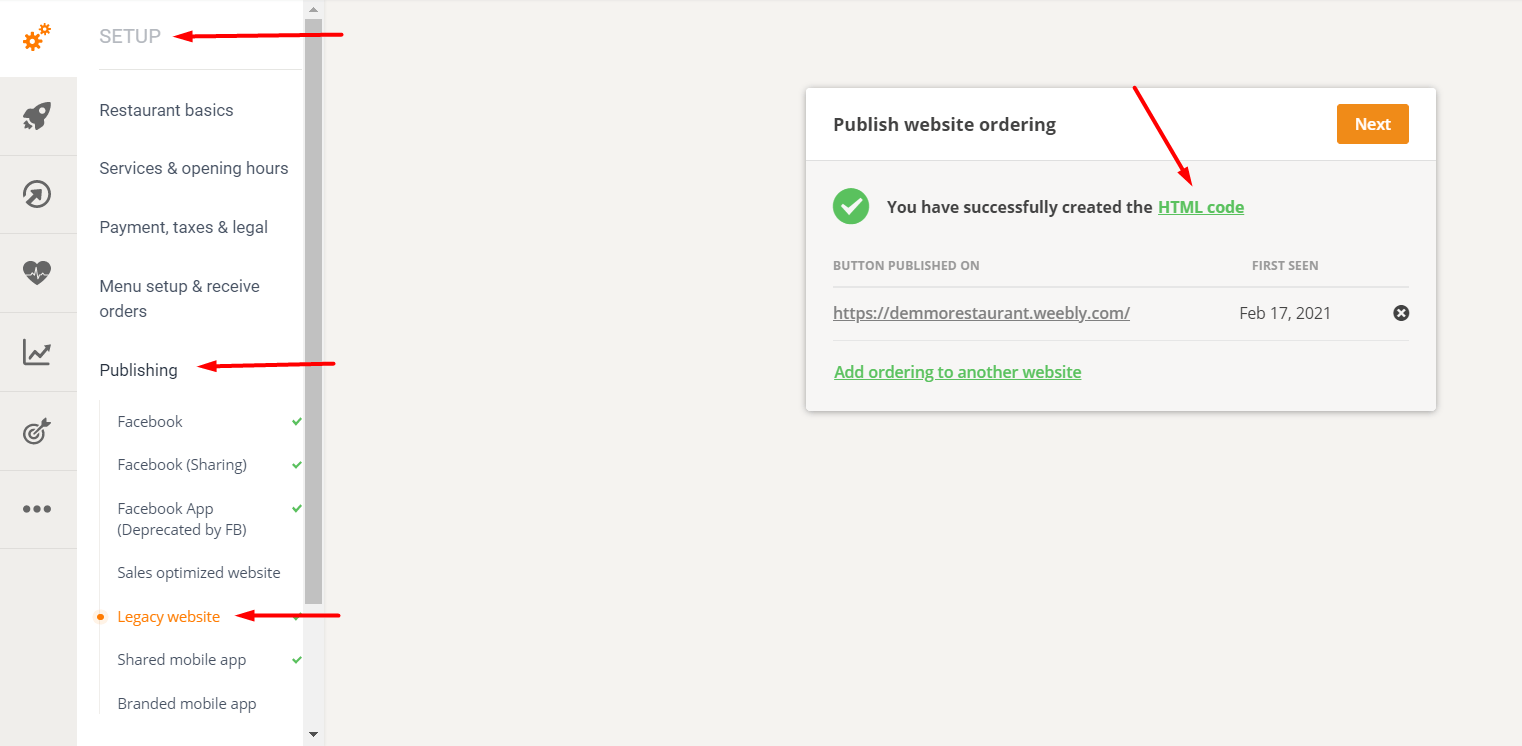
Once this has been done, the code will remain available under the green link, where restaurants can also find instructions for publishing on WordPress-built websites.

Here you will find more detailed instructions on how to install the "Show Menu and Order" button in WordPress.
To see how the order widget looks and behaves on a website, please check the following links (referring to demo restaurants):
- Restaurants with one location
- The restaurant chain