



How to interrupt restaurant services
How to interrupt restaurant services
Whether for a public holiday or a sudden change to a restaurant's regular menu, service can be temporarily suspended via the relevant section in the "Opening Hours" tab.
Go to Admin -> Services and Opening Hours -> Opening Hours -> Exceptions.
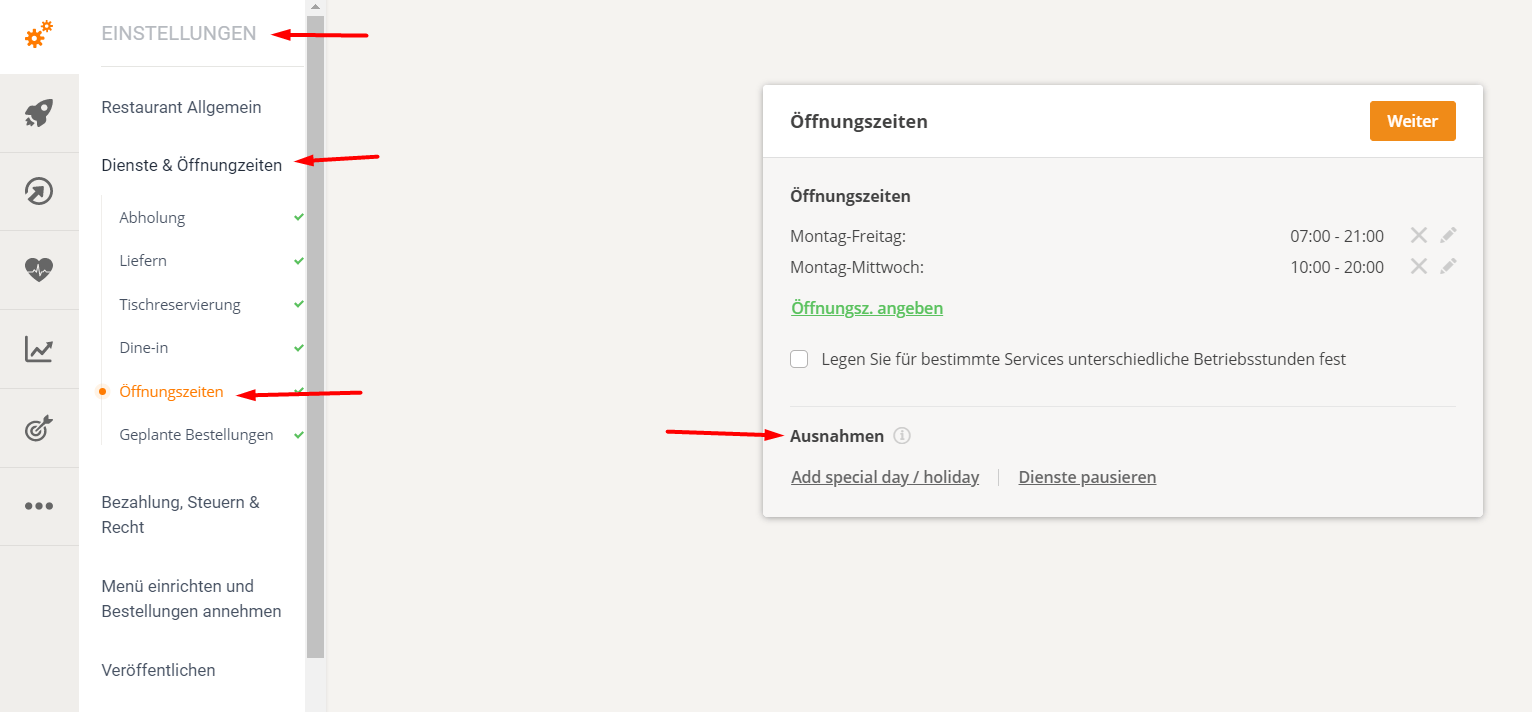
How to add special opening hours or pause restaurant services
1. Add a special day/holiday
For example, holidays, public holidays or other temporary changes to service hours:
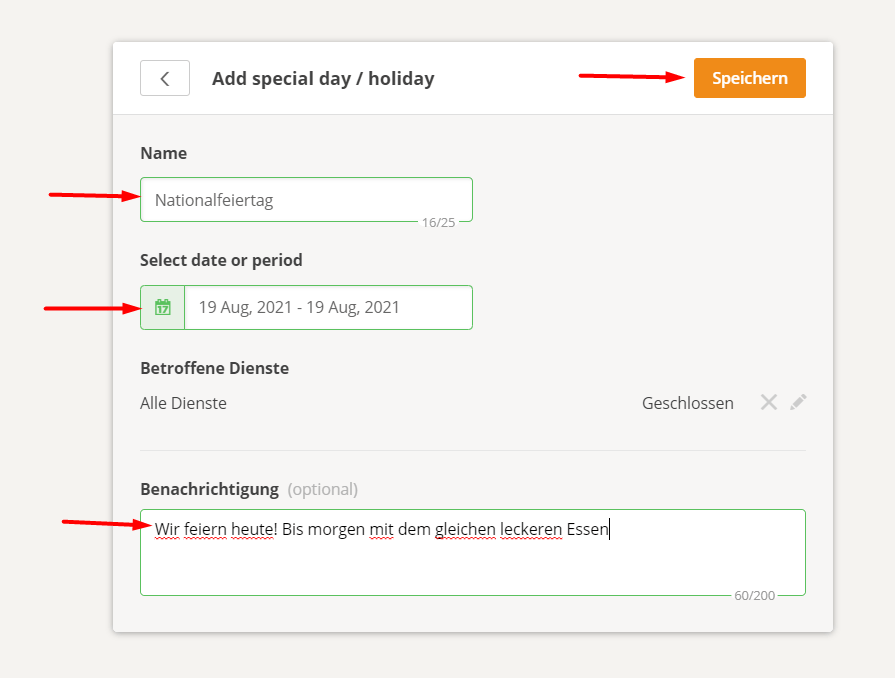
- Go to Admin -> Services and Opening Hours -> Opening Hours -> Exceptions -> Add Special Day
- Enter the name of the holiday -> Select the holiday date -> Select the services affected by the holiday (delivery, collection, etc.) or All services
- Write a message for food customers that will be visible when they open the menu (optional).
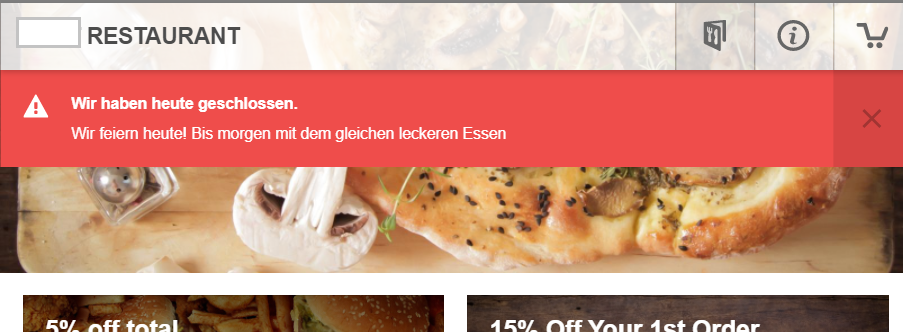
Below is an example of a restaurant that is closed due to a national holiday:
- This is how the above settings look in the order widget:
The account holder can also set a longer vacation/exception period. Please see below for instructions on how to quickly set this up:
2. Pause restaurant operations
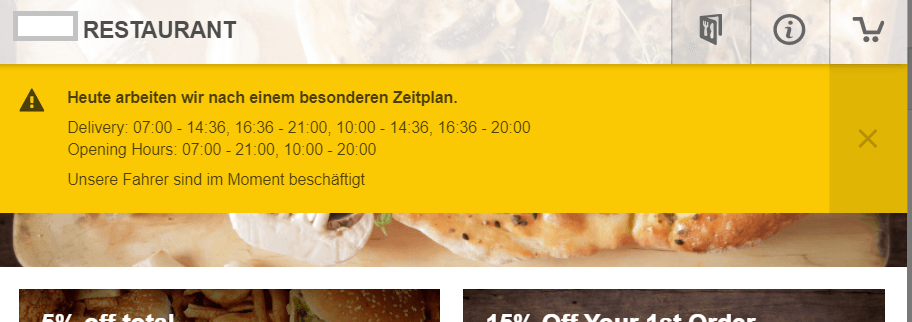
If the restaurant has to suspend online ordering due to too many orders, close early, drivers call in sick, etc., "pause services" can only be used for the current day.
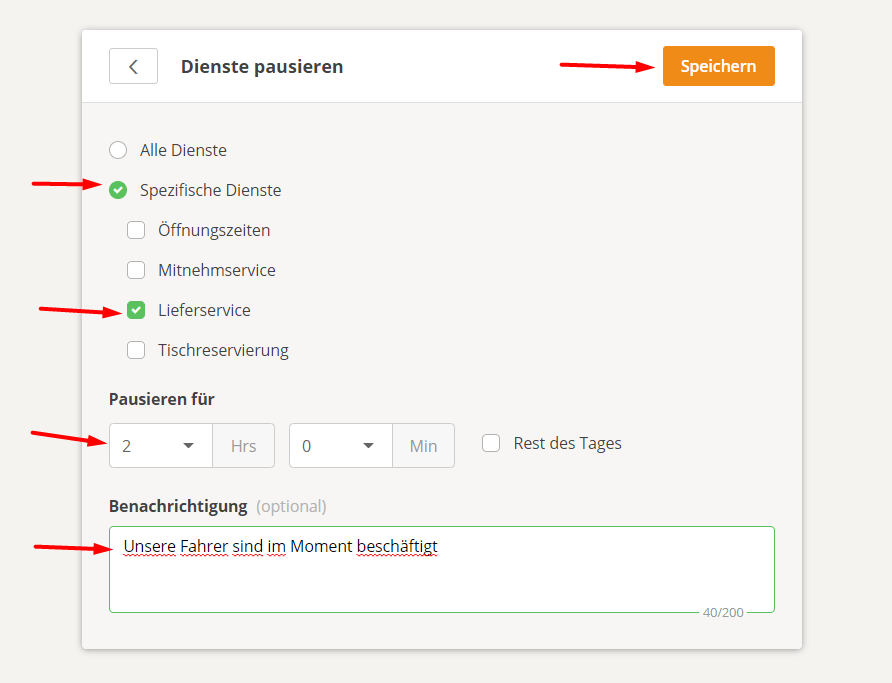
- Go to Admin -> Services and Opening Hours -> Opening Hours -> Exceptions -> Pause Services
- Select Specific Services -> Select the specific services to be stopped (e.g., Delivery / Collection / Delivery Collection, etc.) -> Set the time interval for the pause (either "x hours y minutes" or "Rest of the day")
- Write a message for food customers that will be visible when they open the menu (optional).
This is what it looks like in the order widget:
The food client can use the standard camera app (iOS, Samsung) for most phones or a dedicated QR scan app, point to the QR code and will be redirected to the order widget with pre-selected food.