



Planned orders - overview
Planned orders - overview
Predictability and good planning are key to a successful restaurant. Restaurant managers now have a new feature in the system that helps them better organize pickup and delivery services according to the restaurant's kitchen capacity or driver availability – Scheduled Orders.
Where can I find this function?
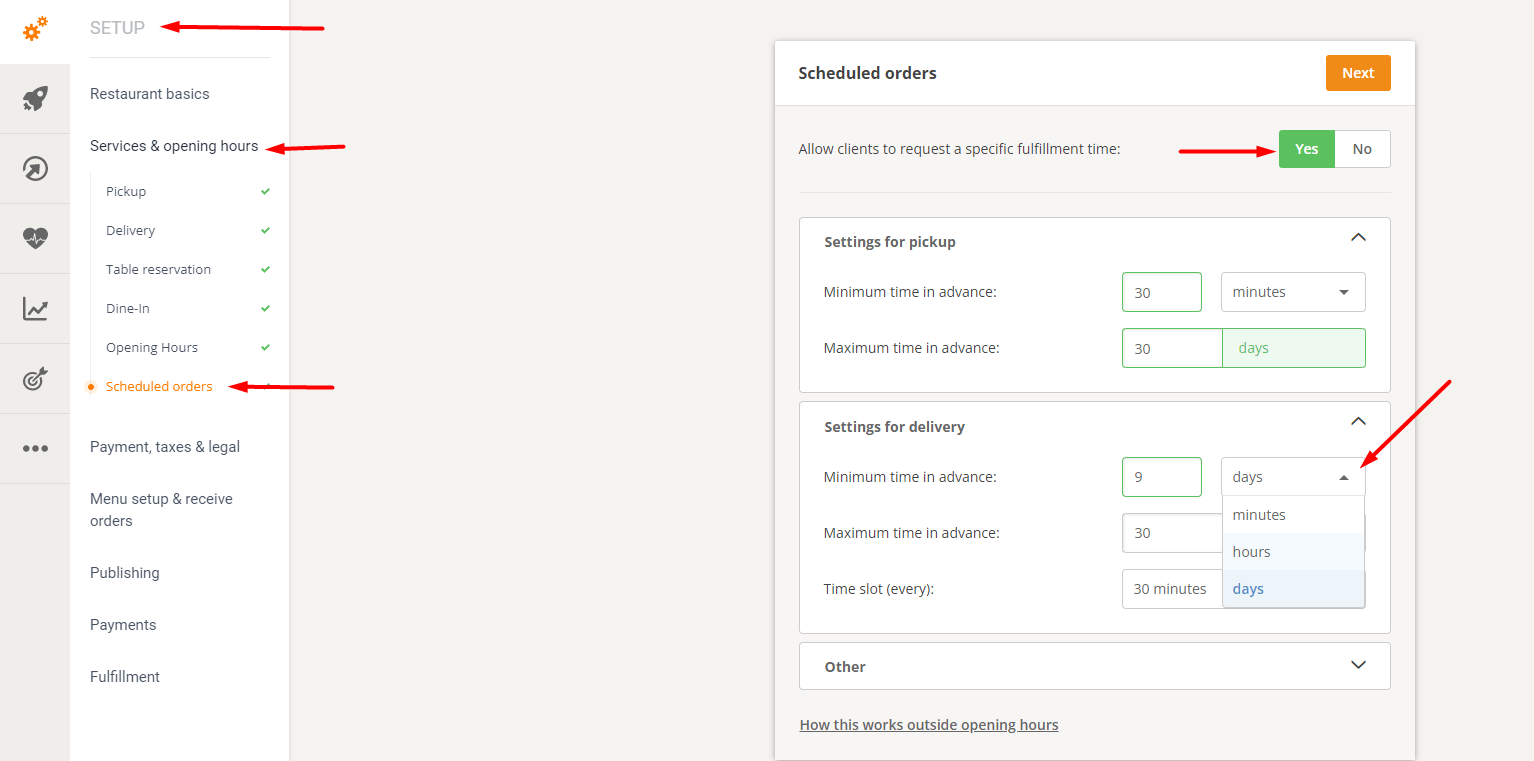
In the admin panel, go to Setup -> Services & Opening Hours -> Scheduled Orders.
How does it work?
This function allows a restaurant to:
- Set the minimum advance notice time for pickup and delivery services in minutes, hours, or days. The maximum advance notice time can be set up to 30 days.
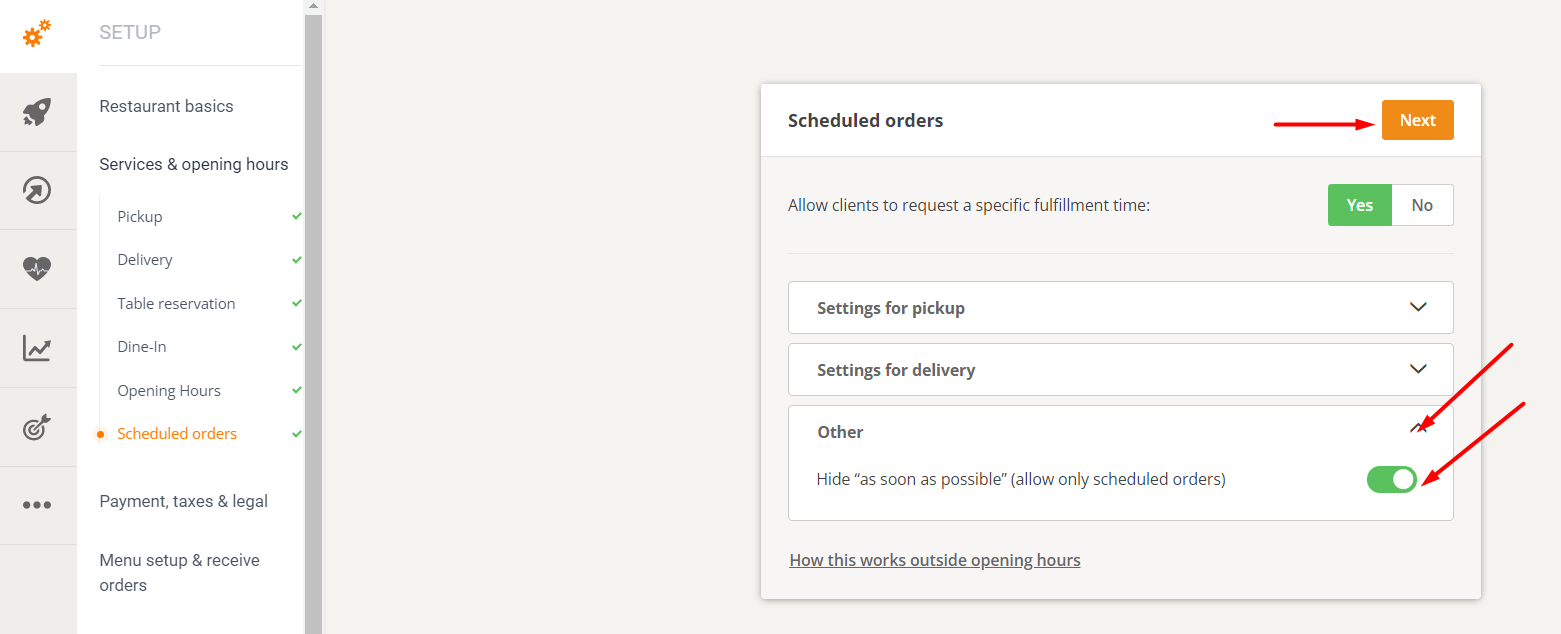
- Hide "ASAP" orders – for businesses that want to rely exclusively on scheduled orders (fulfillment time is set by the grocery customers). If ASAP ordering is disabled, grocery customers must set their desired fulfillment time at the checkout.
- Set custom delivery slots as follows:
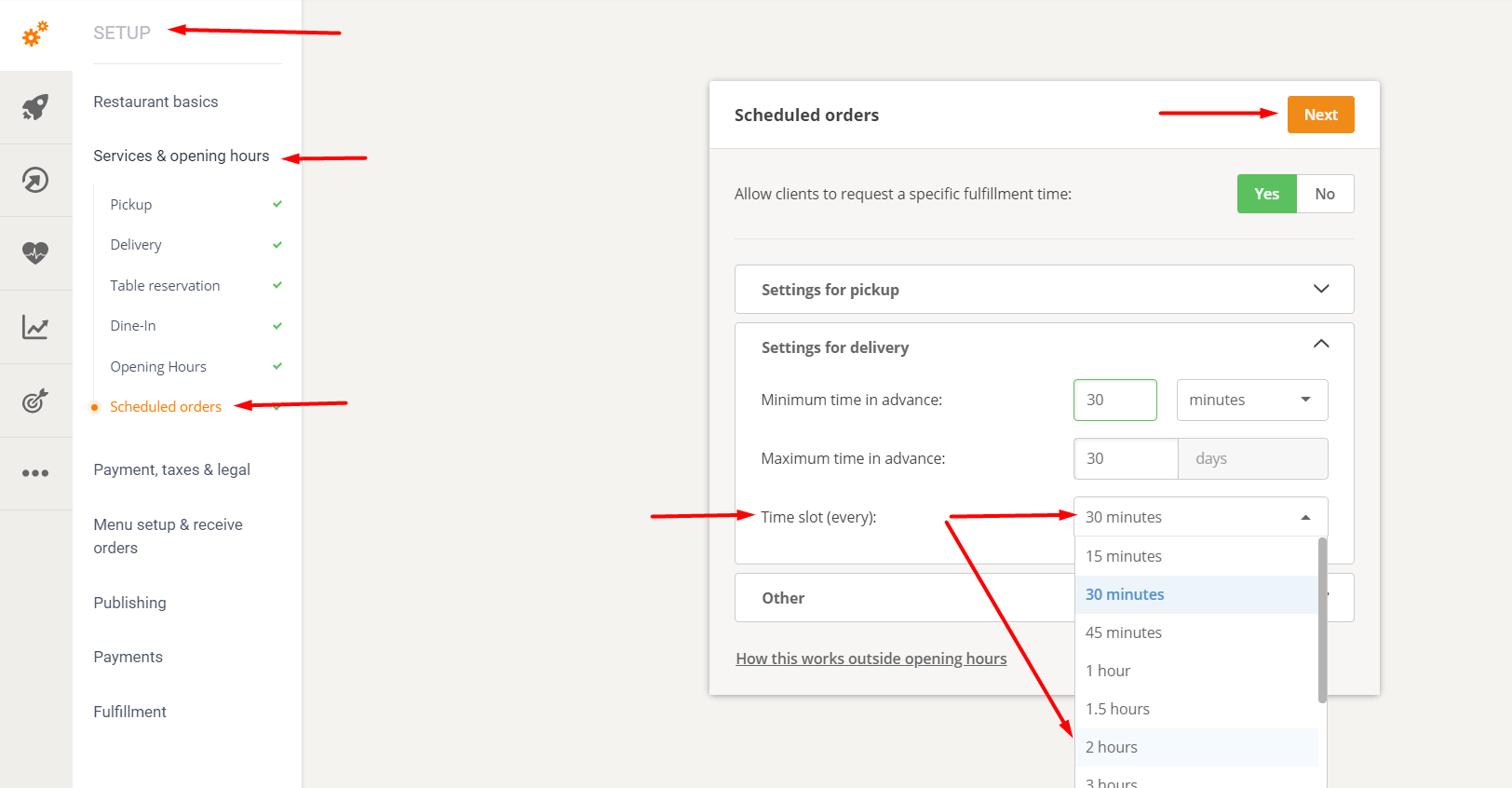
This means that restaurants, instead of delivering food at fixed times, can now deliver between intervals, such as:
- 14:30-15:00 (half-hour interval)
- 14:00-16:00 (2 hour interval)
- and more
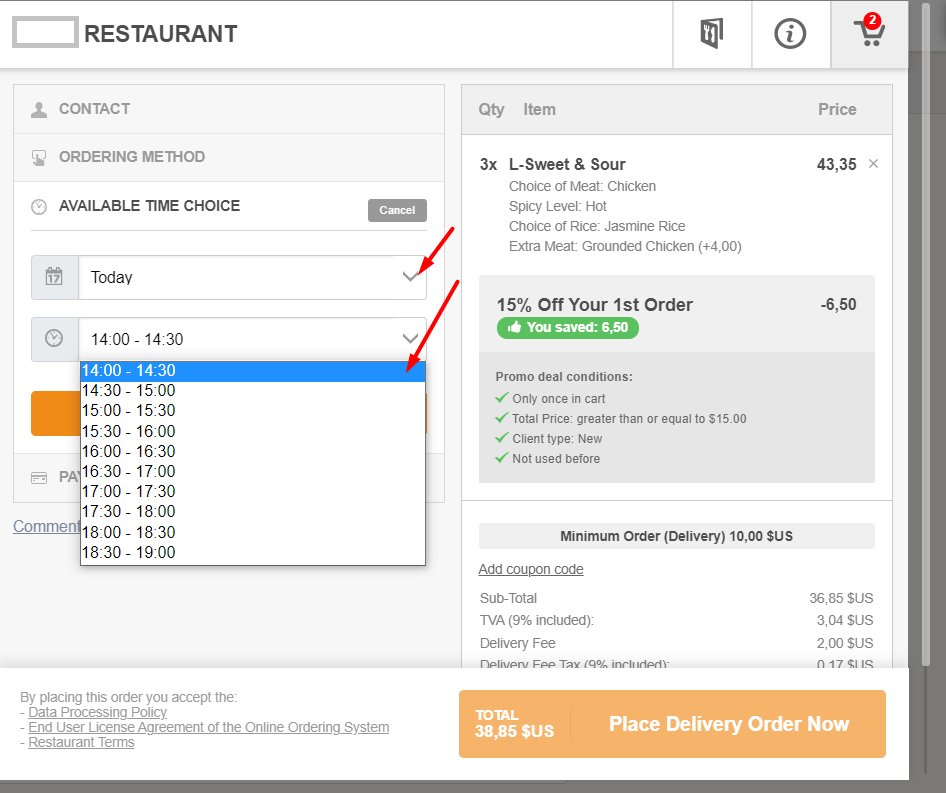
This is how the time windows are displayed in the order widget (the example given is for a 30-minute interval):
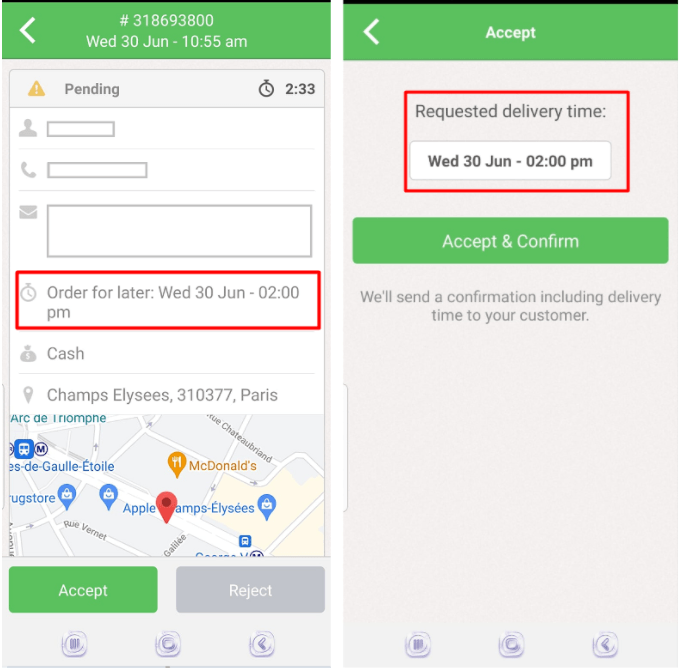
This is how the order is received in the restaurant order-taking app:
Limit the number of scheduled pickup and delivery orders per time slot.
For example, if there are too many scheduled orders at a certain time of day (see the "Limit scheduled orders" function).
Where can you find these settings?
Admin panel -> Other -> Advanced settings -> Limit scheduled orders
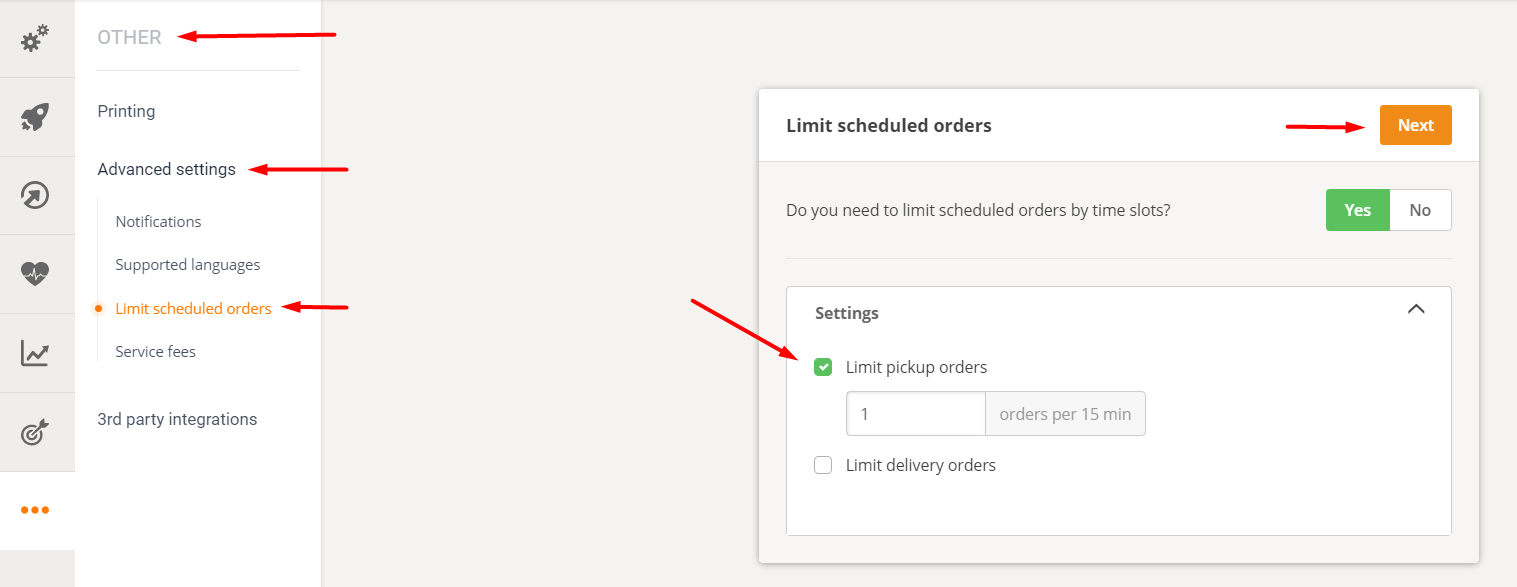
How does it work?
The restaurant can choose whether one or both restrictions are activated.
- For pickups: The limit is always defined in 15-minute intervals.
- For delivery: The time window is the same as what the restaurant has defined in Setup -> Services & Opening Hours -> Scheduled Orders.
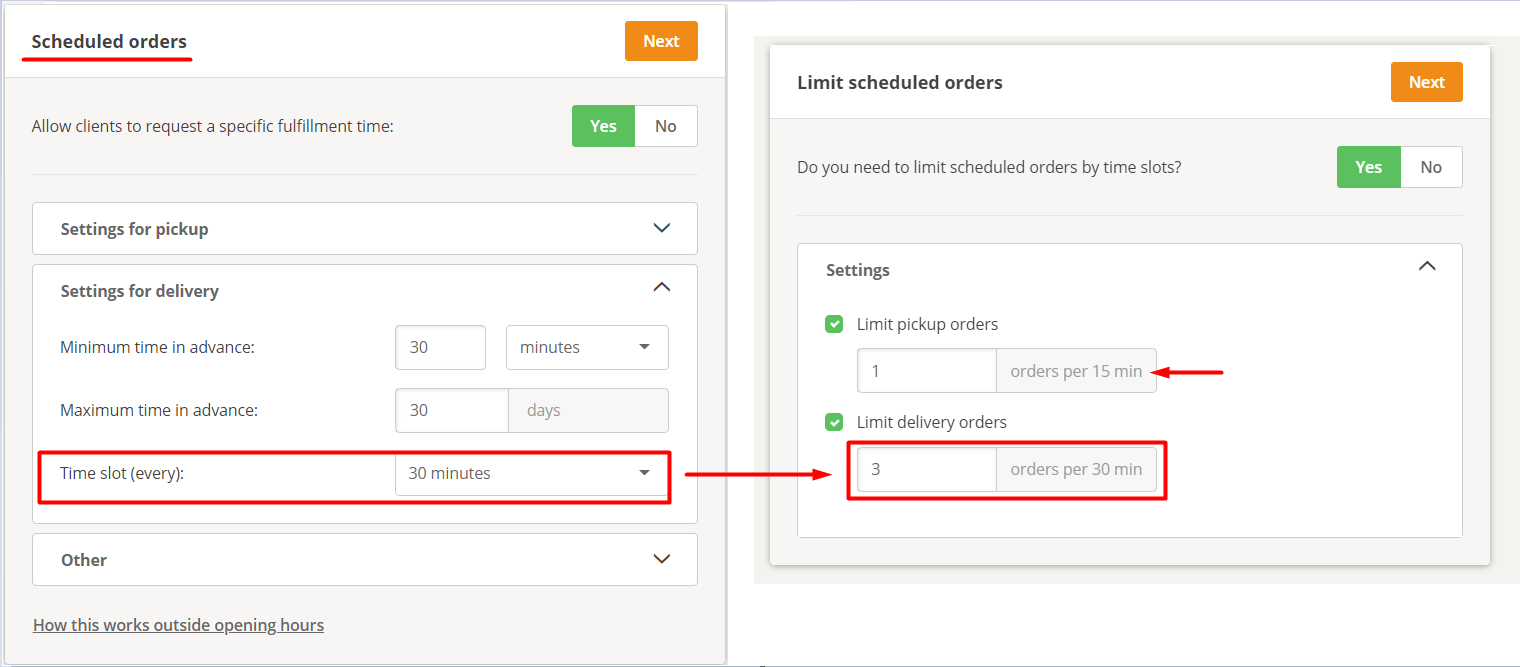
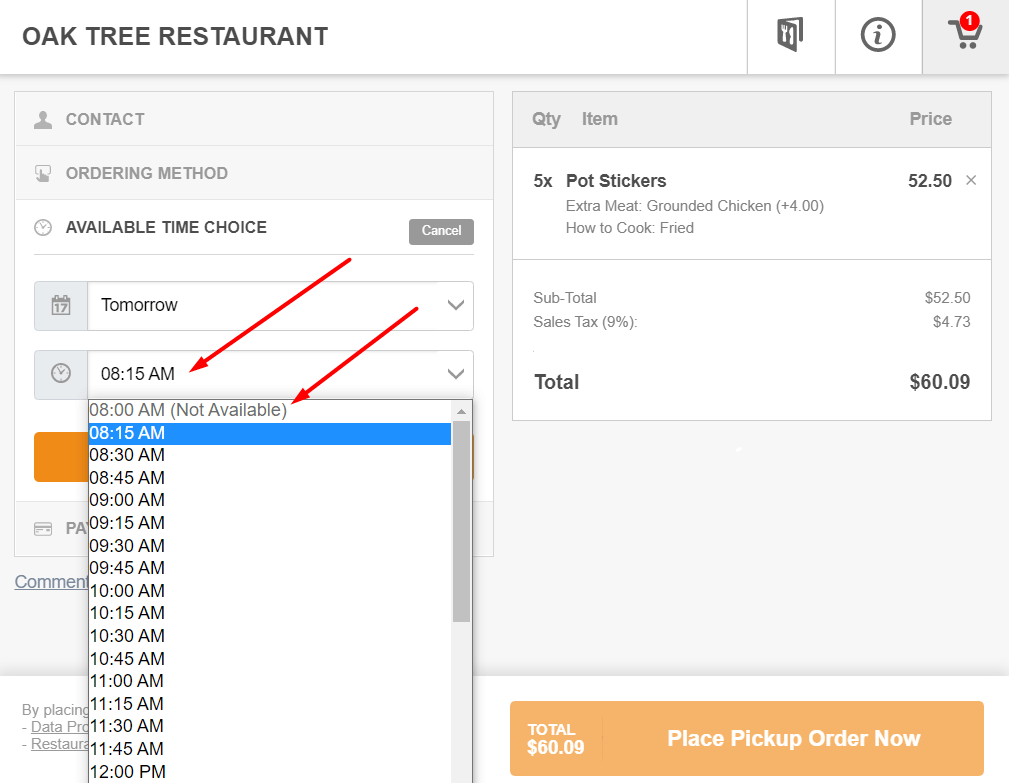
This is what it looks like for the food customer.
Once the limit for a slot is reached, the slot will be displayed as unavailable in the order widget. The first available slot will be automatically preselected.
What happens if the restaurant receives too many ASAP orders?
An option to control the number of ASAP orders was released some time ago. We recommend using the "as soon as possible" hide (Planned Orders section) for this purpose, as explained at the beginning of this article.