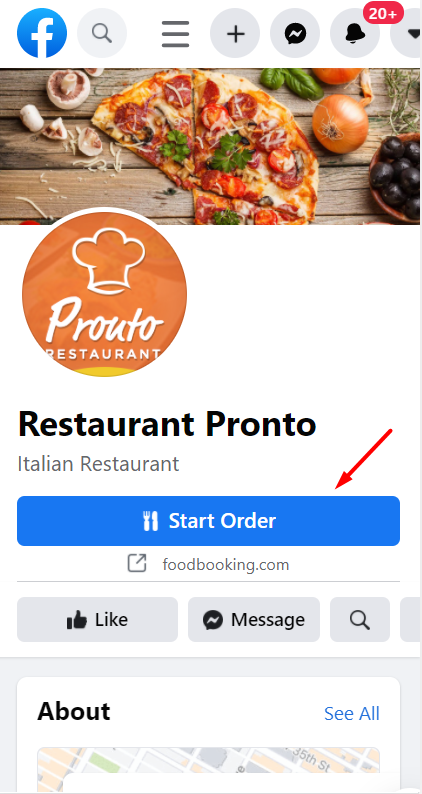
Here's how to add the Facebook order start button
Here's how to add the Facebook order start button
Here is a video showing how the restaurant can set up the "Shop Now/Start Order" button to enable Facebook orders on its page.
These are the step-by-step instructions:
- Go to Admin Panel -> Setup -> Publishing -> Facebook and click "Next".
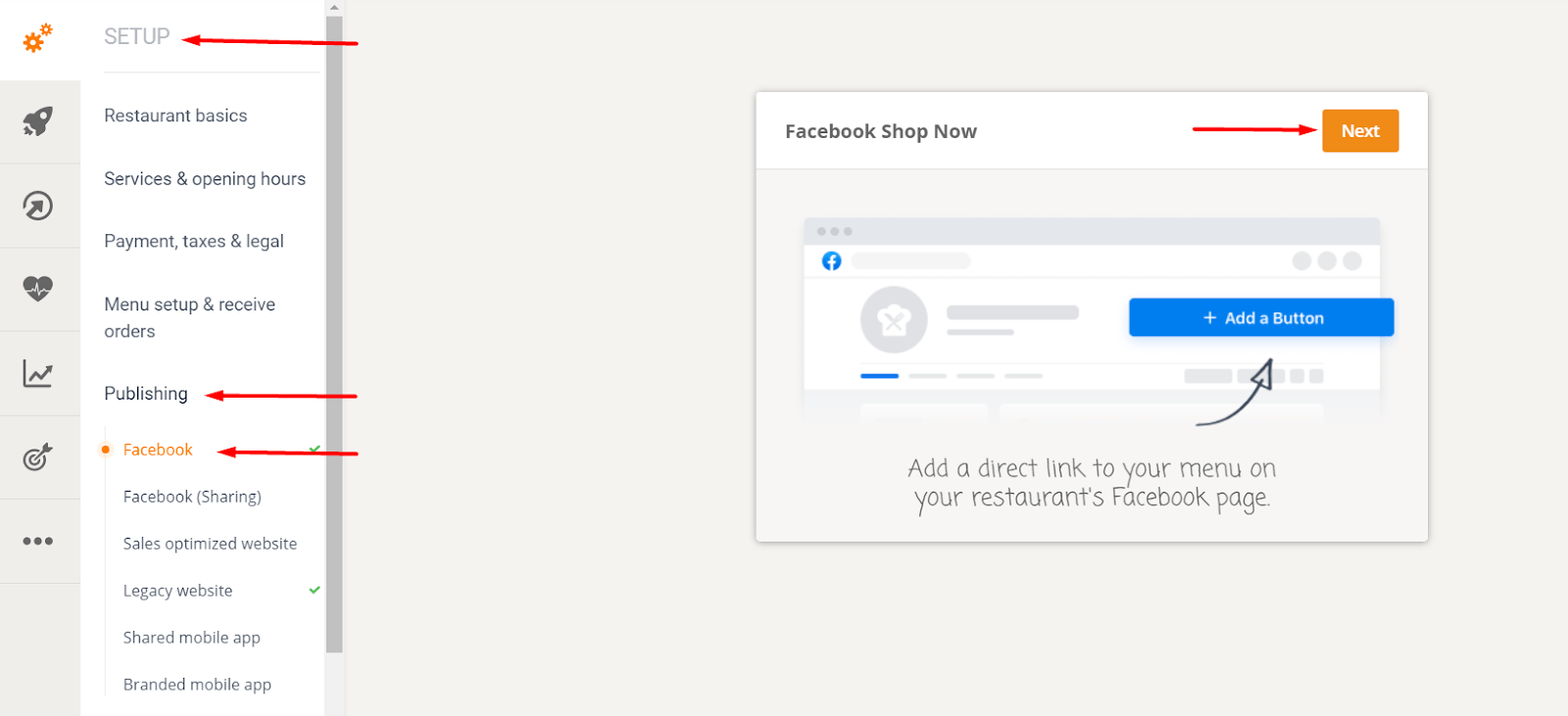
- In the following window, click Next again.
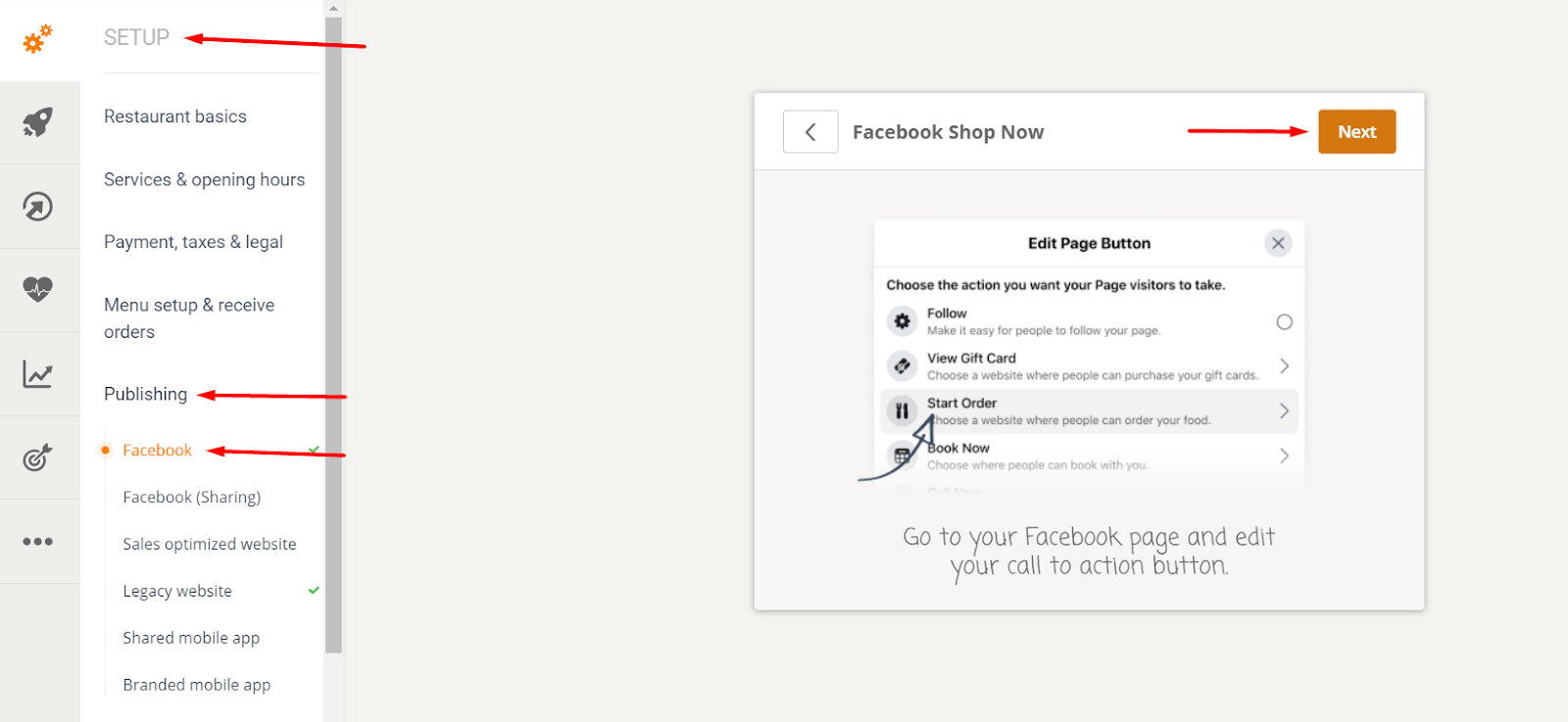
- Click the Copy icon as shown below:

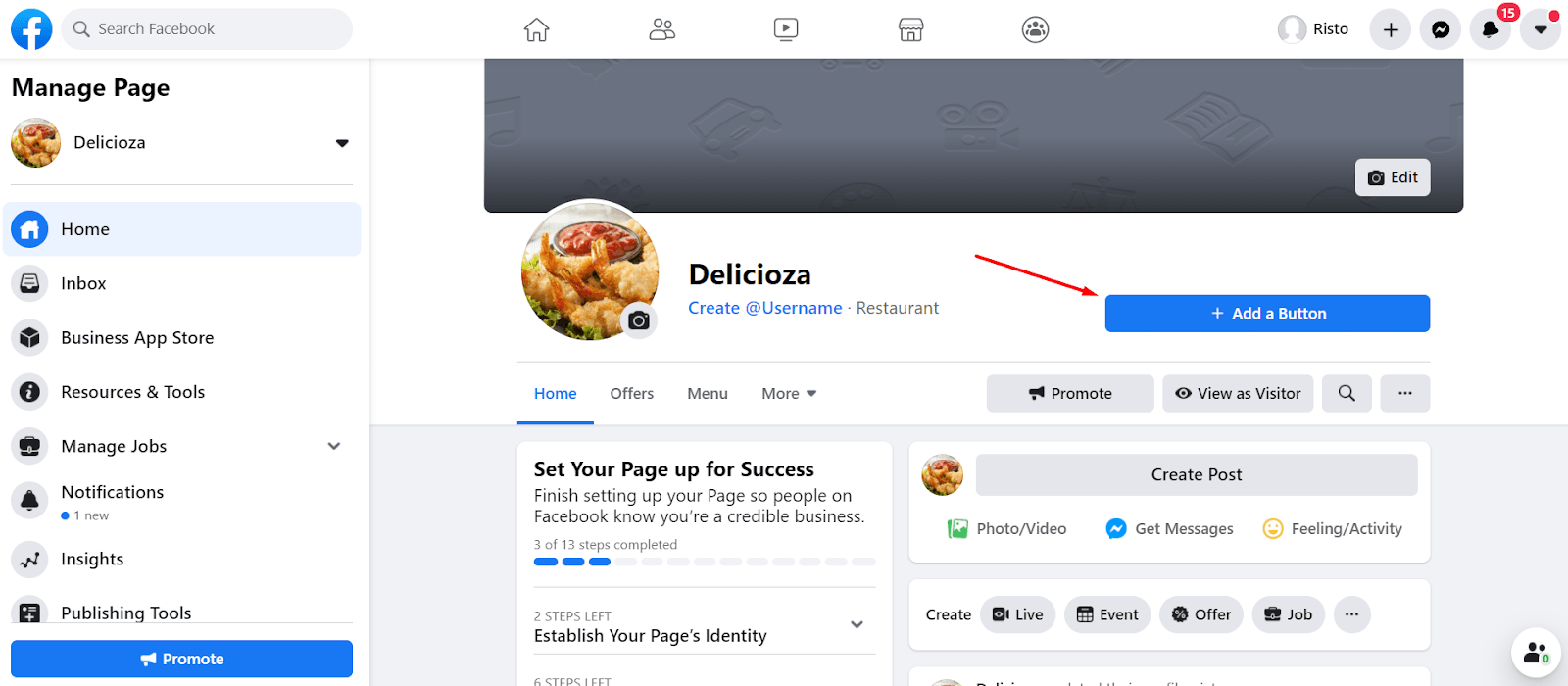
- Go to the restaurant's Facebook page and click the "Add Button" as follows:
- In the "Edit page" section, select either the "Start order" or "Shop now" button, as follows:
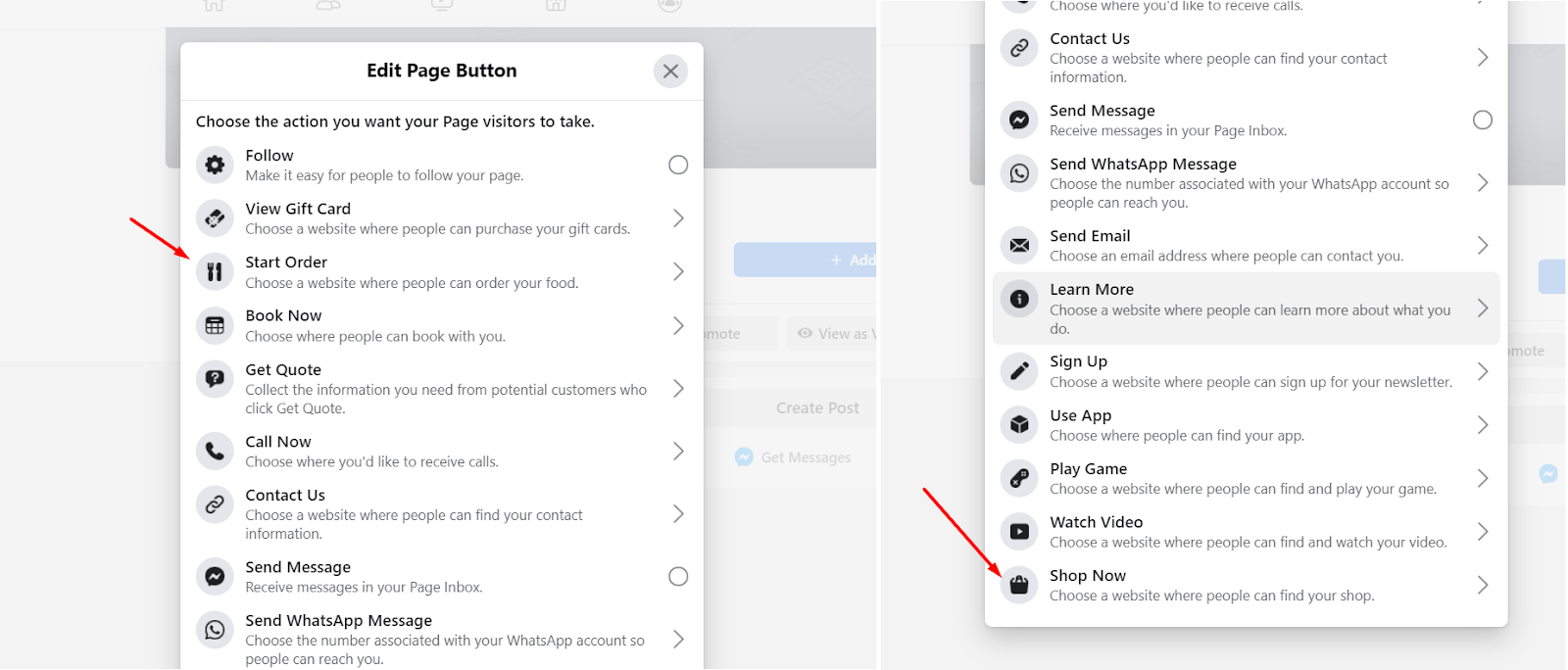
For a more authentic food ordering experience, it is recommended to select the "Start Order" button.
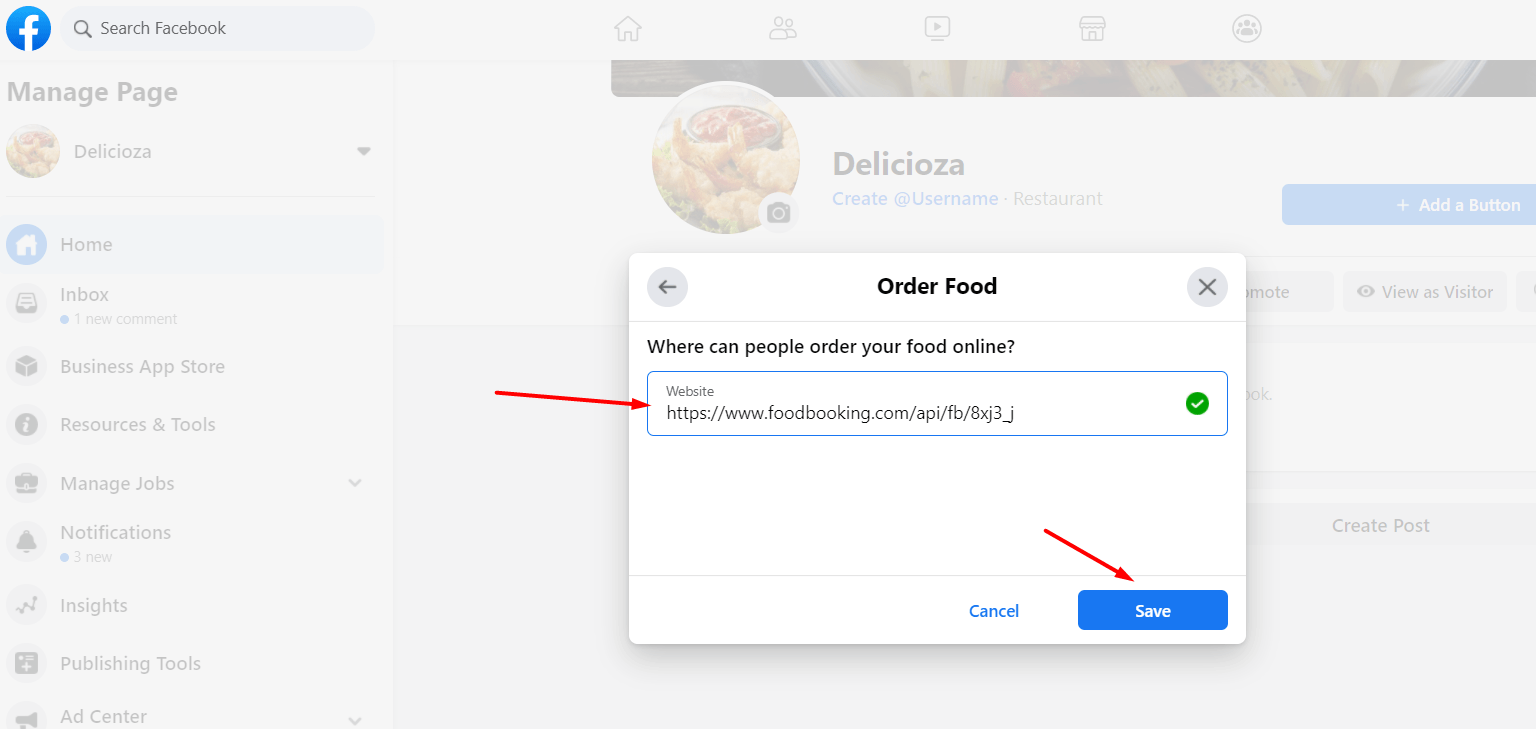
- Enter the link received from our system and then click "Save".
- This is how visitors to the restaurant's Facebook page see the button on their desktop:
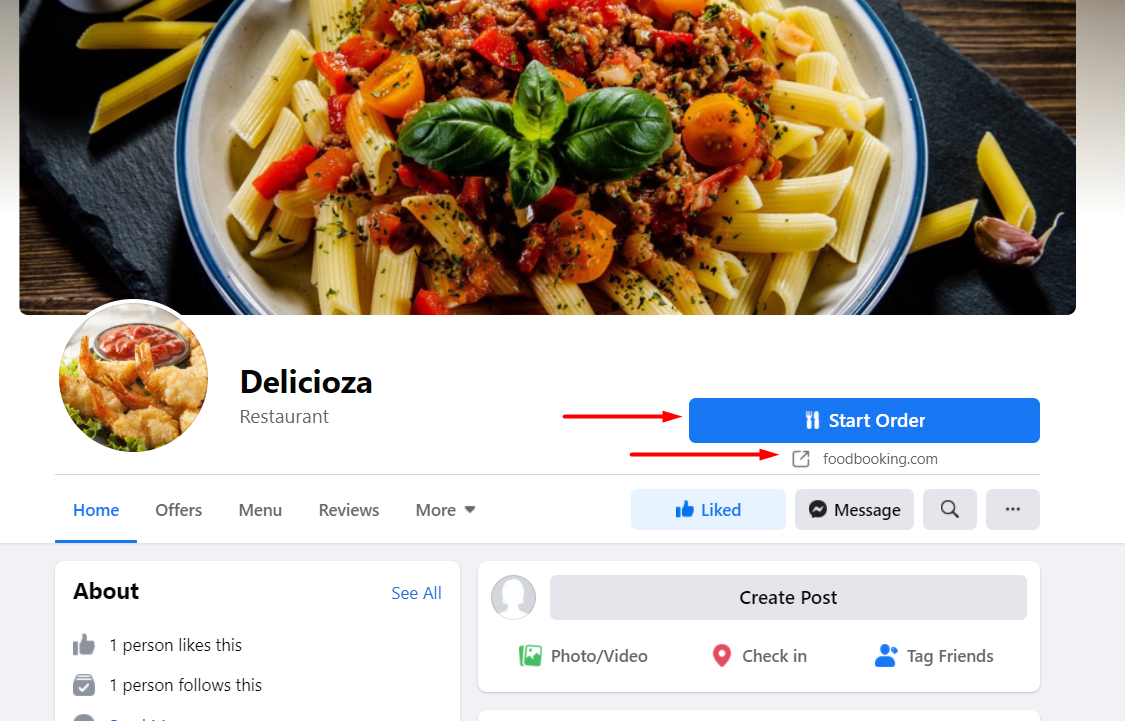
Please note that the menu will open in a different tab on the desktop.
This is how visitors to the Facebook page see the button on their mobile phones: