Promotions - Advanced settings for a personalized promotion
Promotions - Advanced settings for a personalized promotion
If a restaurant manager wants to create and release more complex promotions, they can edit the settings for a personalized promotion based on order time, website traffic source, fulfillment time, etc.
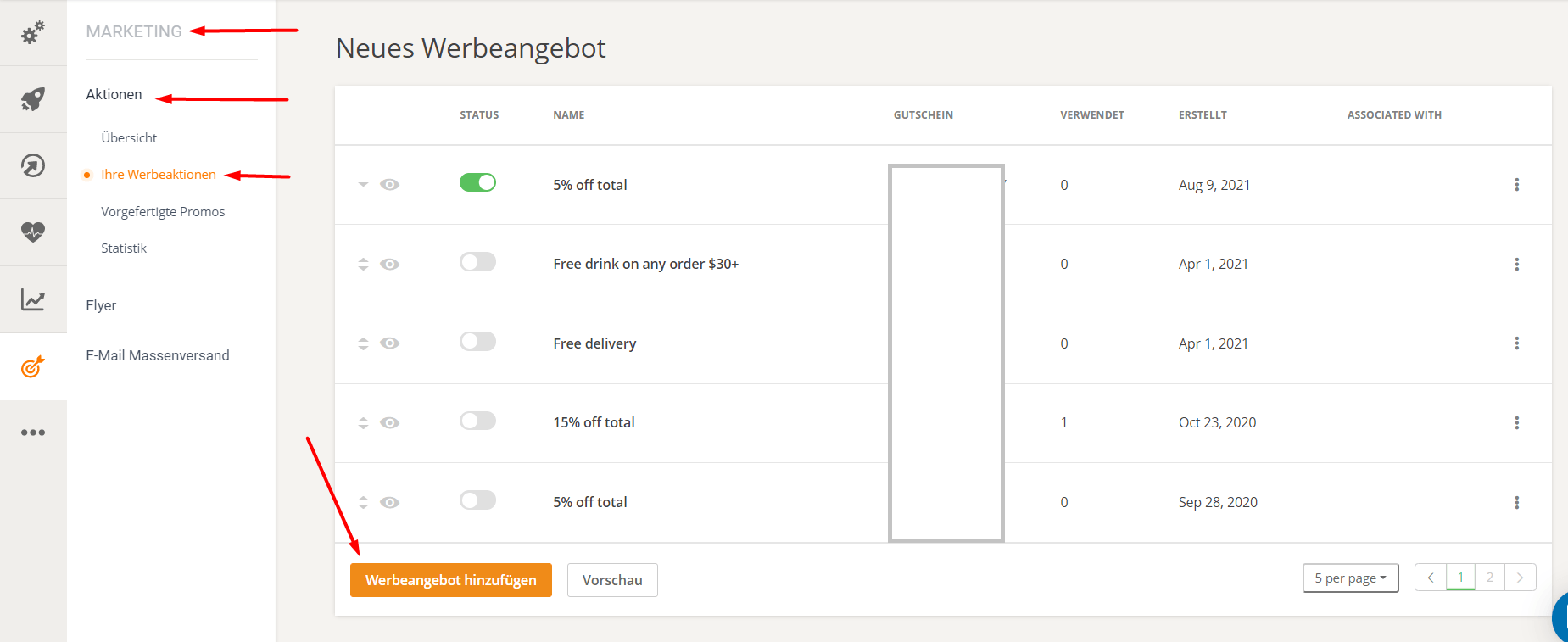
To create a new promotion, go to Admin -> Marketing -> Promotions -> User-created promotions.
Click on "Add promo deal" to start editing the promotion.
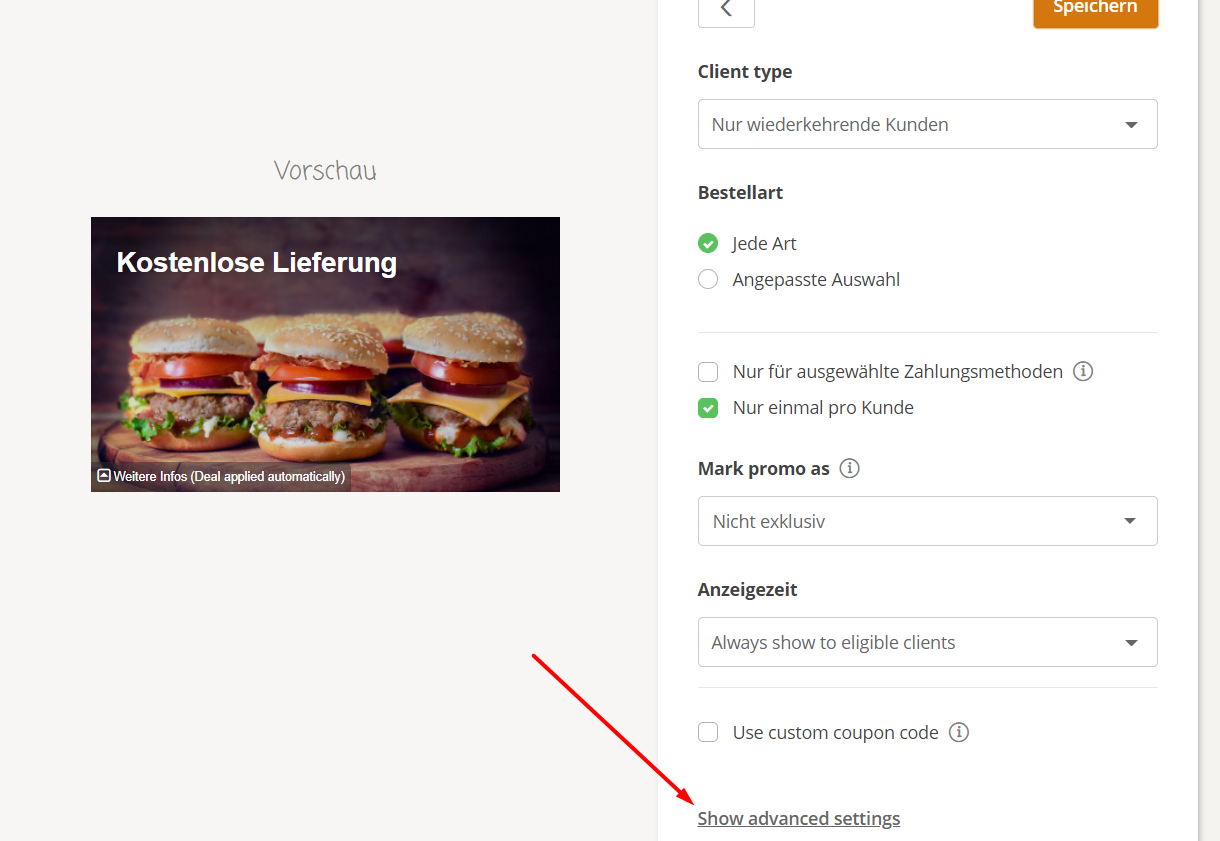
After the first two steps, in the section where the restaurant defines its target audience, they also have the option to view advanced settings. By clicking on this, they can unlock some additional options for customizing the promotion.
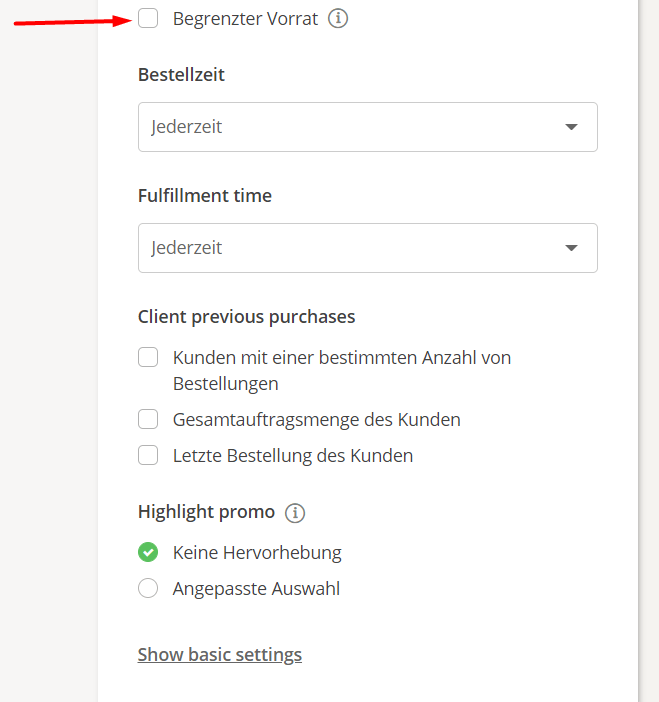
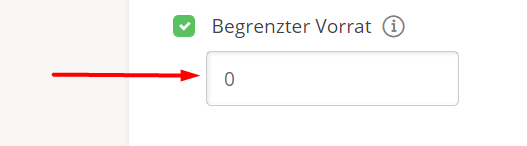
The first option is to use the promotion for a limited number of orders. To do this, select the "Limited stock" checkbox and choose the number of orders.
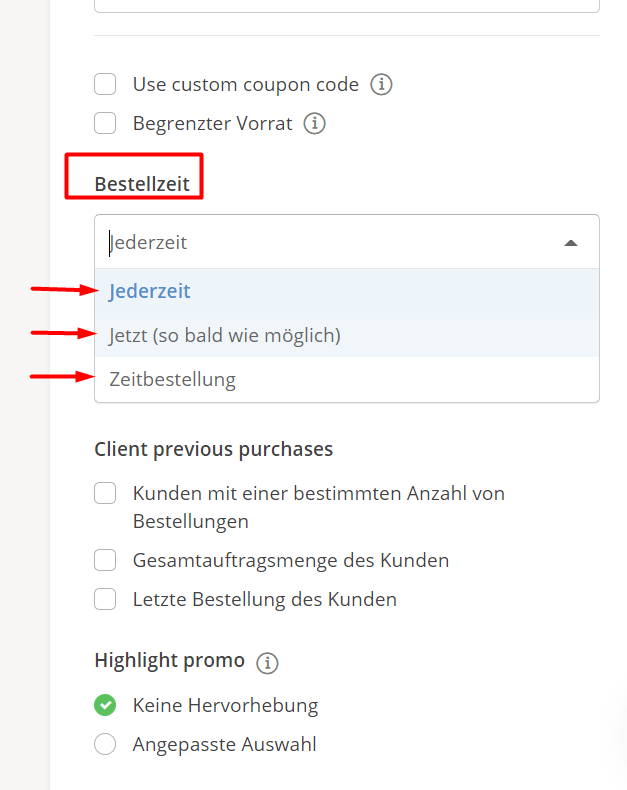
The restaurant can also apply this promotion only to people who select "Order now (as soon as possible)" or "Order for later." For example, if the restaurant wants to encourage pre-ordering to better manage inventory, it can set the promotion for people who select "Order for later" with a message like "Order for tomorrow and enjoy a 10% discount."
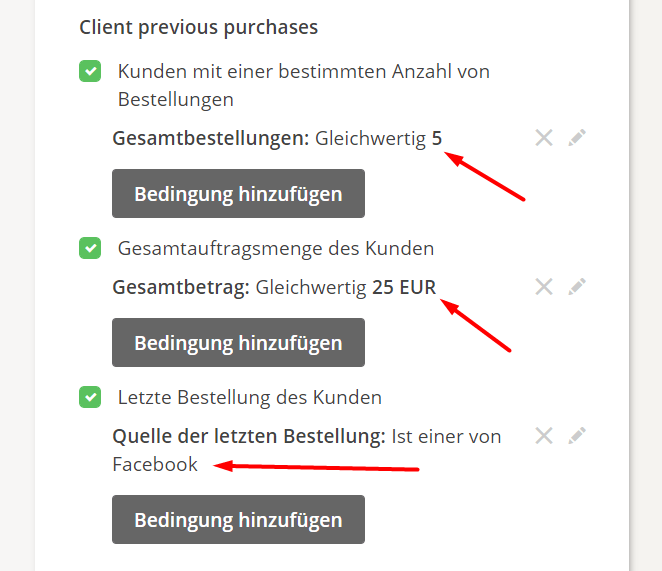
Here, the restaurant can also define what customer loyalty means to them when targeting repeat customers. If they have decided to offer this promotion only to repeat customers, here are all the advanced options available to them:
- Customers with a certain number of orders (Example: The promotion is only available to customers with a number of orders greater than or equal to 5)
- Customers with a certain order amount (Example: The promotion is only available to customers with an average order amount of more than $25)
- Customers with a specific recent order (Example: The promotion is only available to customers who recently ordered via your Facebook page)
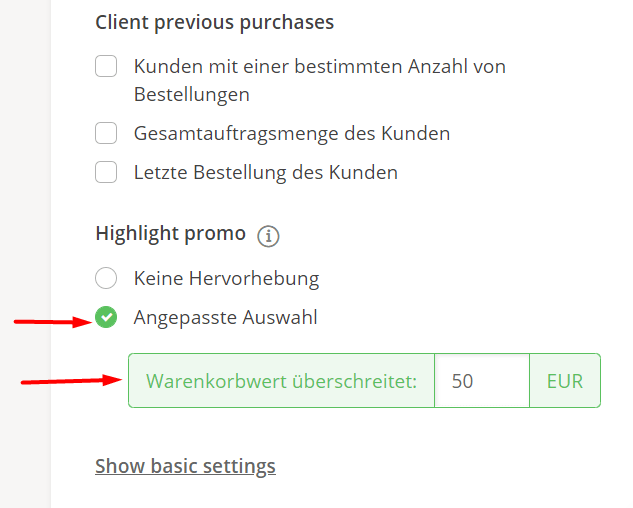
Another advanced setting option is to highlight the promotion to make it more visible. Not all restaurant customers will see the promotions on the website or remember them when it's time to order. They can go directly to the menu and add items to their cart.
The restaurant can set a minimum order value, above which the customer will be shown a popup informing them about the promotion and encouraging them to order more to benefit from it.