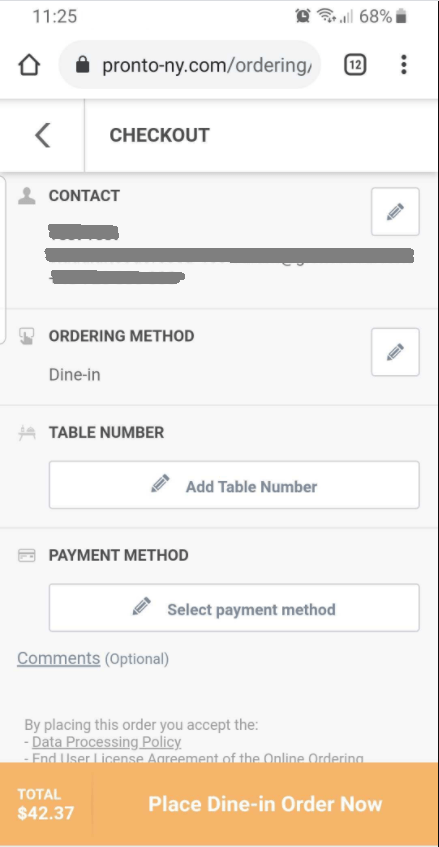
Dine via QR code restaurant menu
Dine via QR code restaurant menu
A QR code restaurant menu for food orders helps restaurants serve more people faster and optimize the customer experience.
How is it set up?
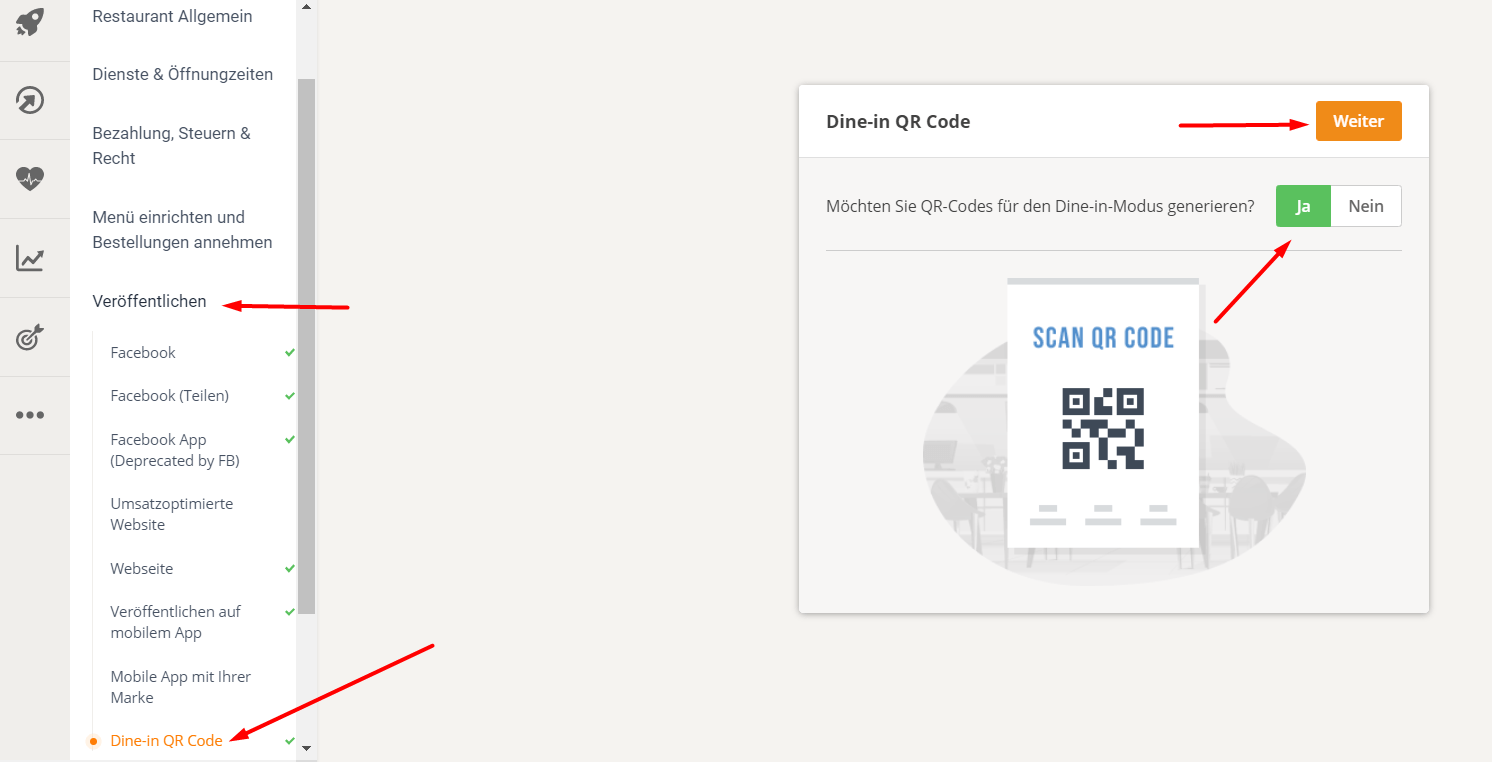
A restaurant wishing to use Dine-in mode should first activate it in the Services -> Dine-in section, check its set opening hours, verify its payment methods, and then go to Publish to generate the Dine-in QR code for contactless dining.
Here is a short video that shows this:
These are the detailed steps:
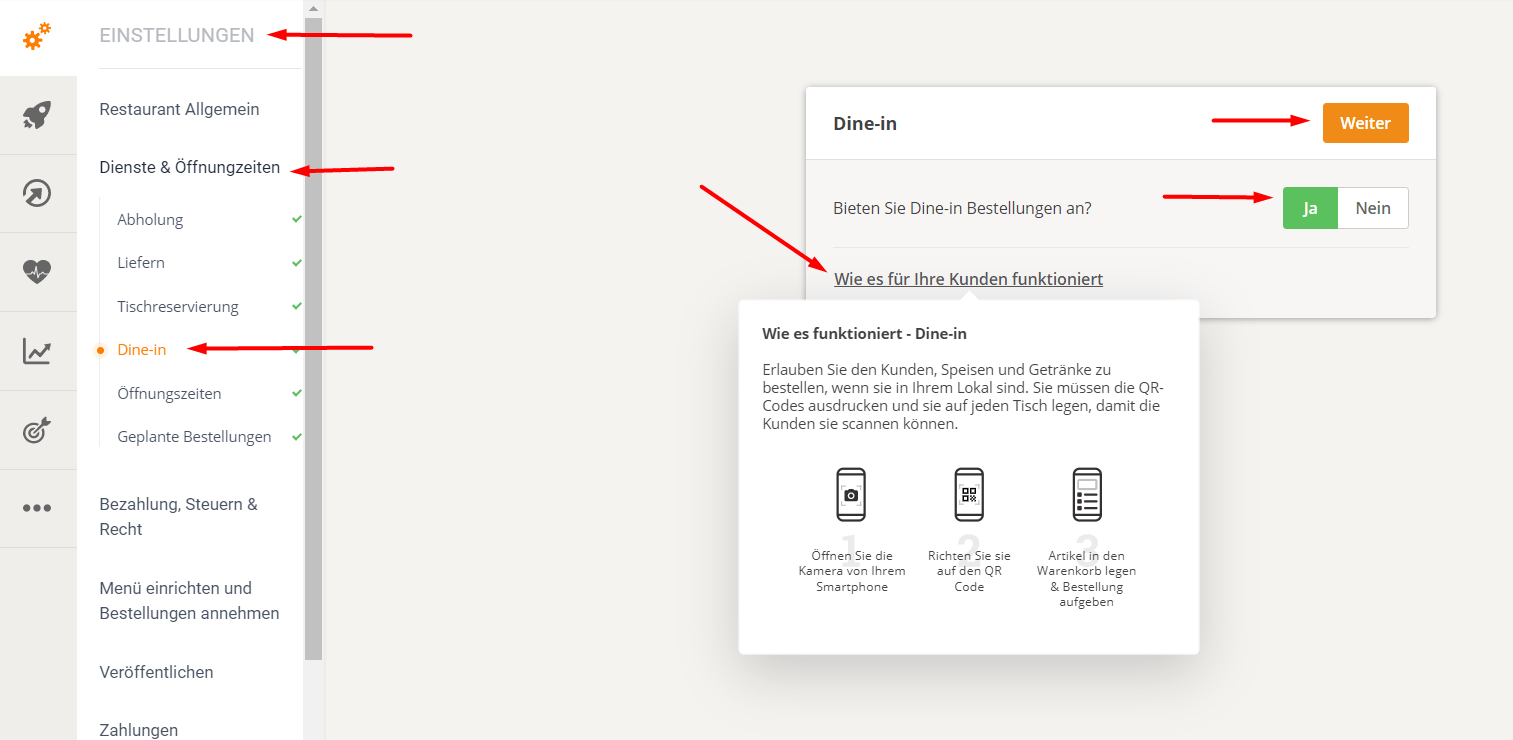
1. The restaurant should first access "Services & Opening Hours" -> "Dine in" and click Yes, then Next to activate the service.
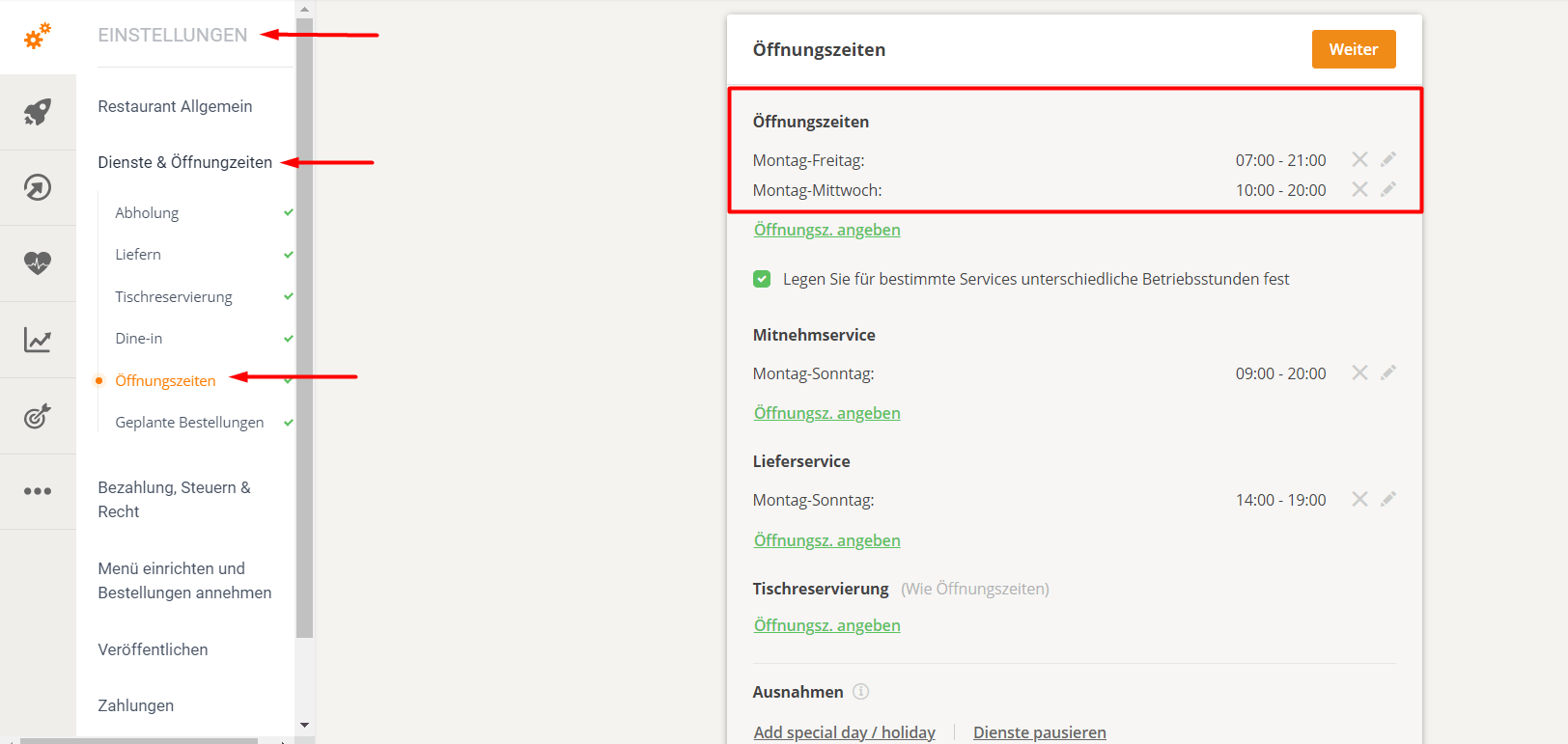
- 2. The restaurant should check the section "Services & Opening Hours" -> "Opening Hours", as the time set here is also available for dinner.
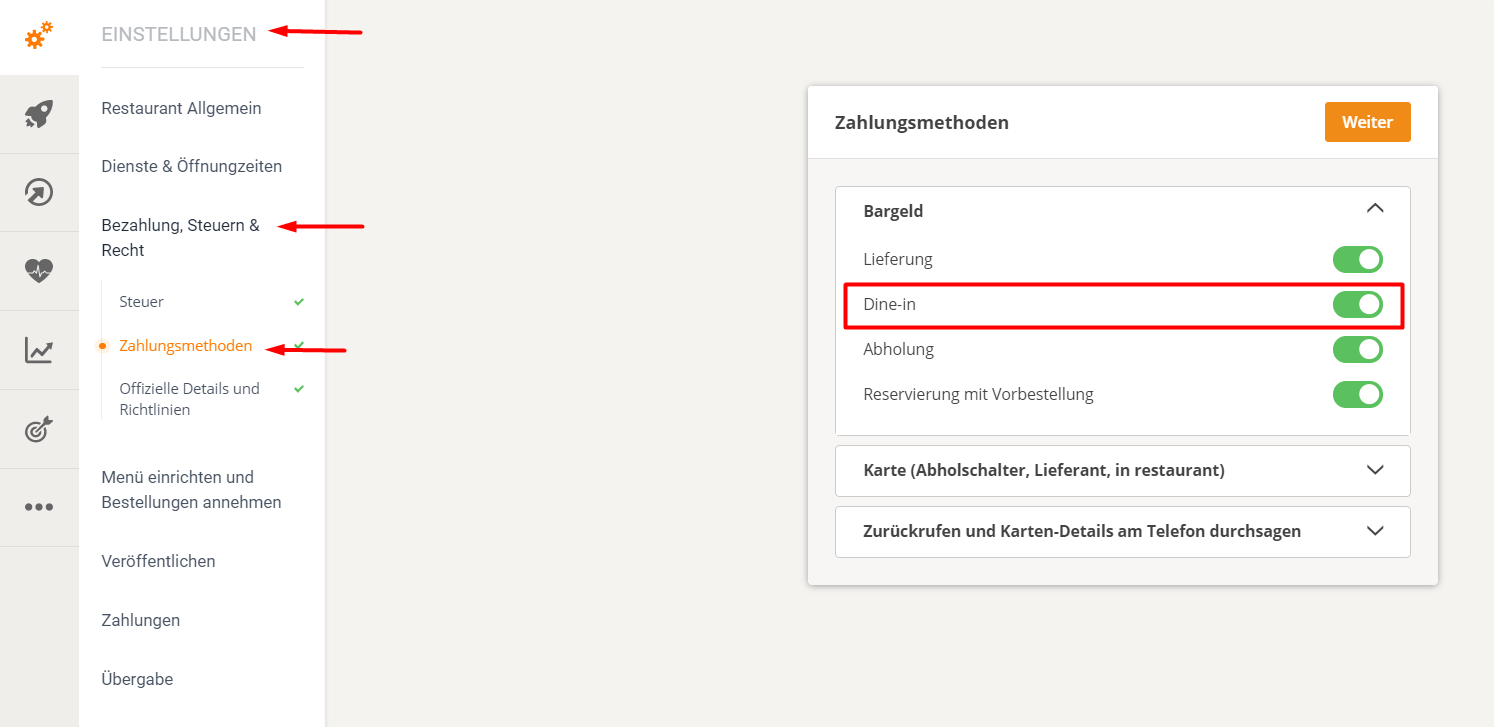
- 3. The restaurant should review the payment methods it has set up in the "Payments, Taxes & Legal" section and enable/disable each method applicable to Dine In. An example follows:
4. The restaurant should then go to "Publishing" -> "Dine-in QR Code Flyer". They will be guided through the process of creating a flyer with a special QR code for their restaurant.
This is how food customers order at the table:
The food customer can scan the QR code from the printed flyer to directly open the contactless menu.
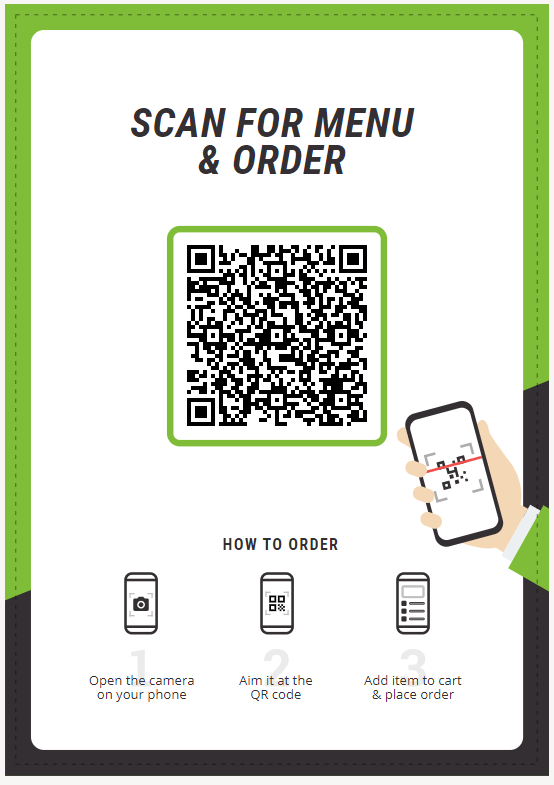
The food client can use the standard camera app (iOS, Samsung) for most phones or a dedicated QR scan app, point to the QR code and will be redirected to the order widget with pre-selected food.