Set up the order widget and the restaurant admin panel language.
Set up the order widget and the restaurant admin panel language.
A restaurant can set both the language for the admin panel and the language in which its dining customers view the order widget.
1. Setting the language for the restaurant admin panel
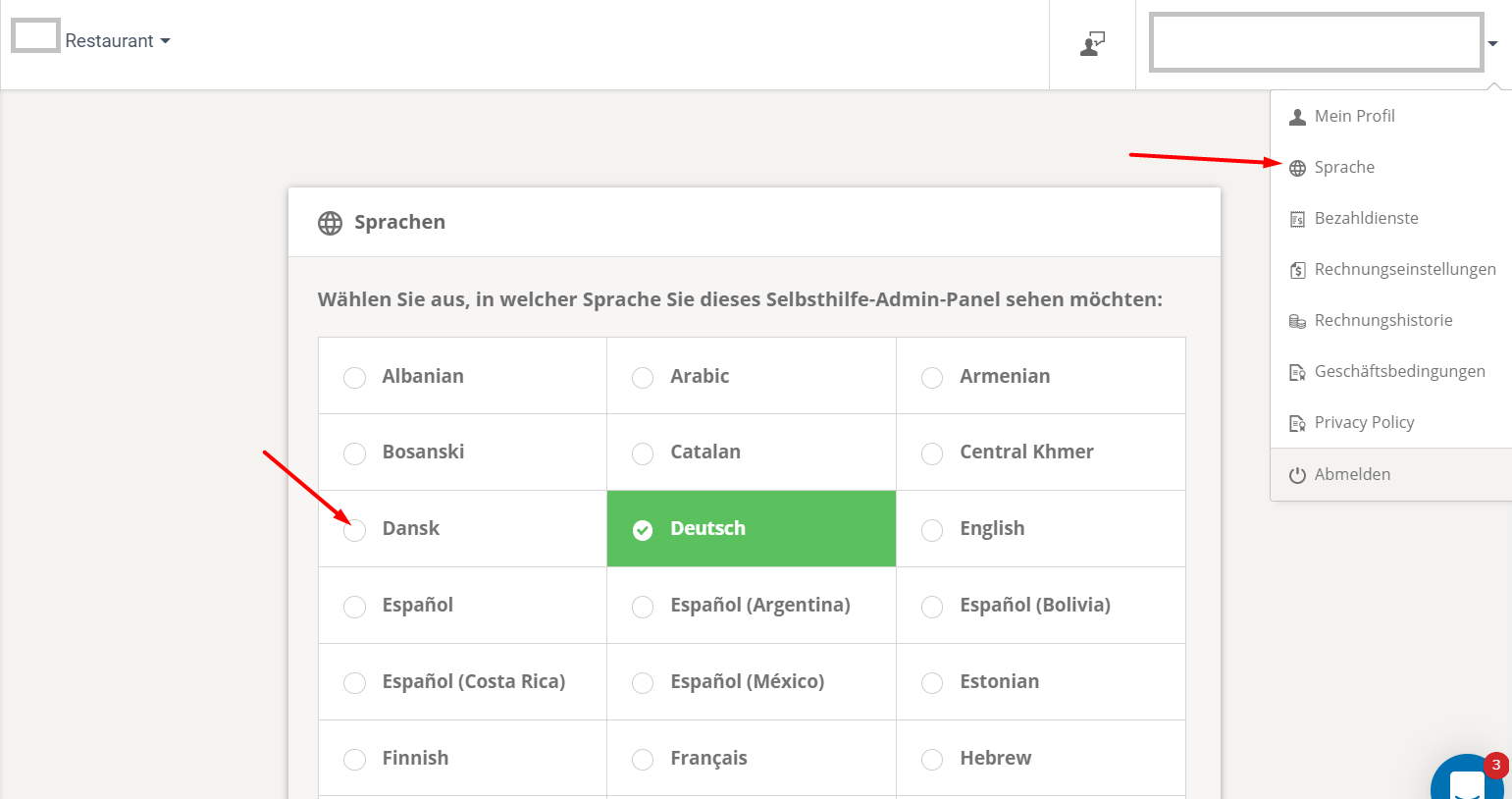
The restaurant can change its admin area to the local language via its restaurant dashboard account in the upper right corner. Like this:
2. Setting the language for the order widget
To automatically launch the food customer menu in a specific language, the account owner can set this language as the default for their customers via the Other -> Advanced Settings -> Supported Languages tab, as follows:
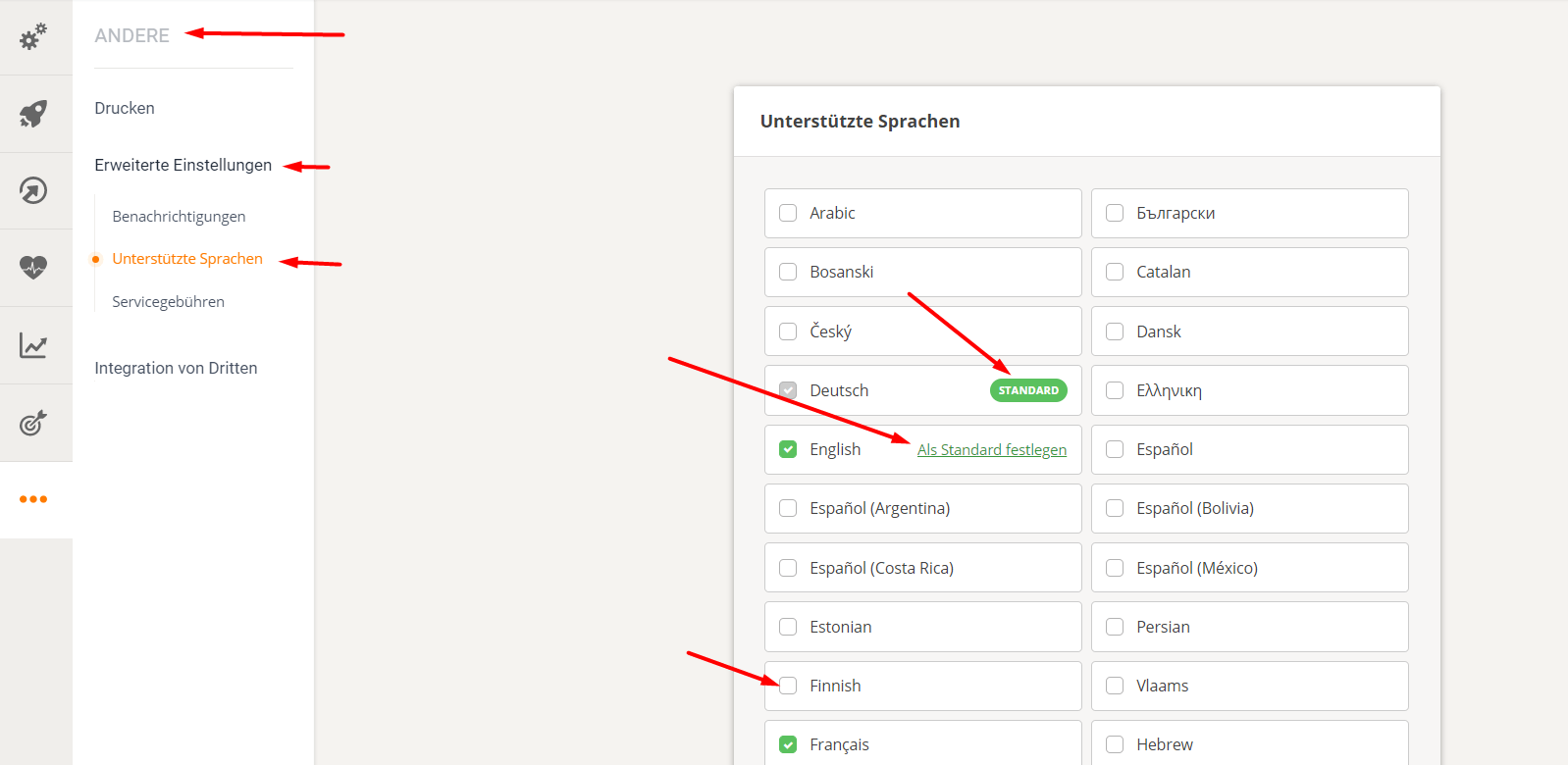
Furthermore, the restaurant can decide which other languages customers are allowed to see/select in order to place their order.
In any case, the menu widget detects the language set in the customer's browser for opening websites, and if this language is included in the list selected by the restaurants, the widget will be displayed there. Otherwise, the default language is used.
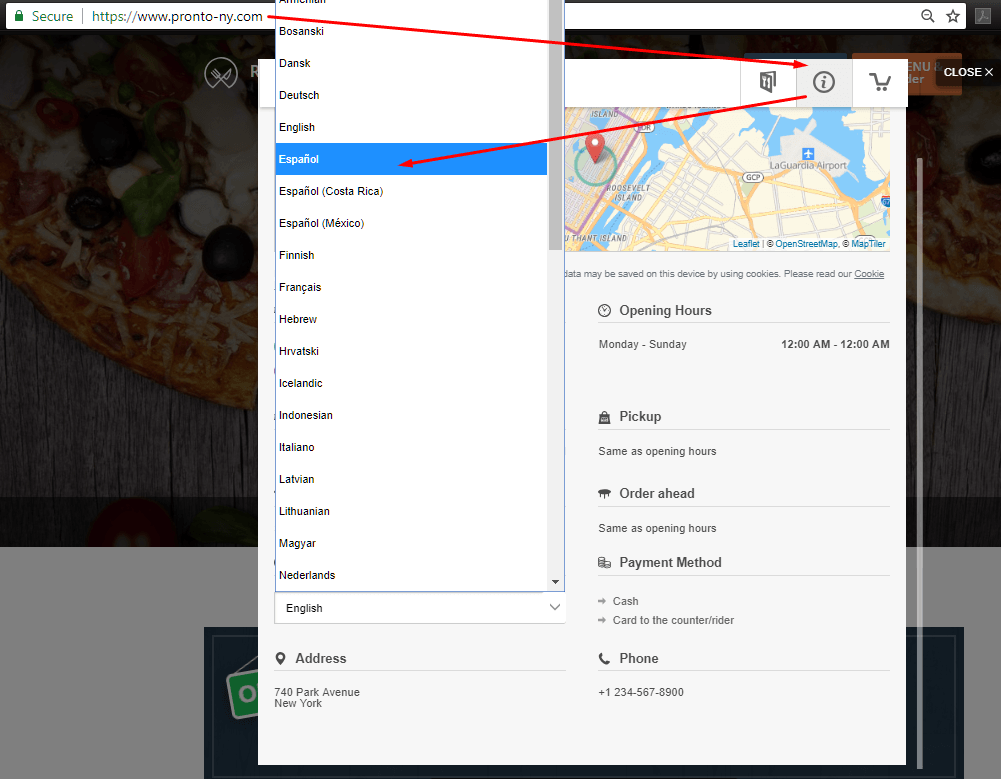
For example, you can manually select Spanish in the info section of the order widget (even if the restaurant language is German, for instance), and the system will remember this the next time you enter. Something like this: