Restaurant taxes (menu item tax rates, sales tax, currency)
Restaurant taxes (menu item tax rates, sales tax, currency)
In the Taxes section of the admin panel, the restaurant can set different tax rates for menu items or for different services, change the currency, or specify how restaurant sales tax is applied to menu prices.
These options are available under Setup -> Payment, Taxes & Legal -> Taxes:
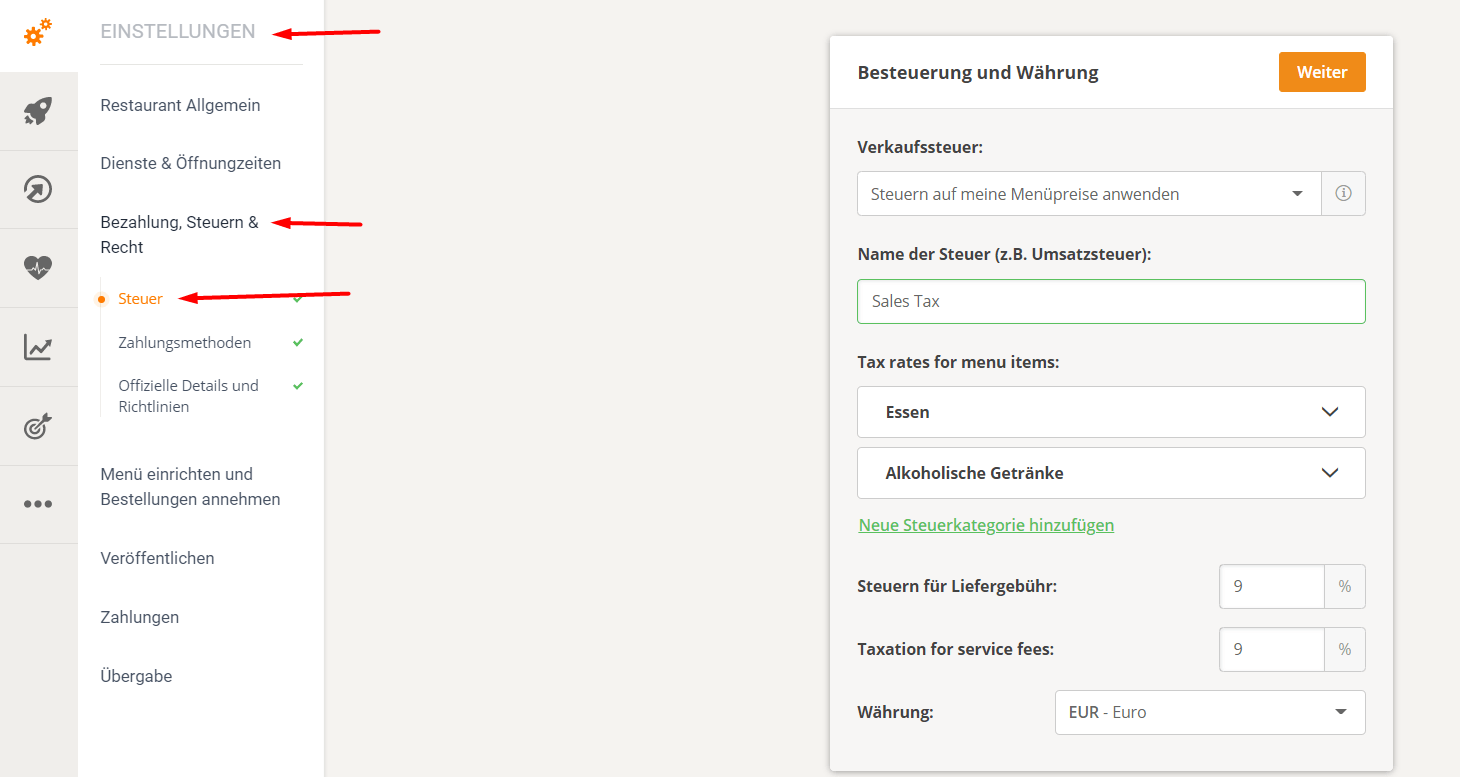
The system uses some default settings for each country, but the restaurant can configure them accordingly.
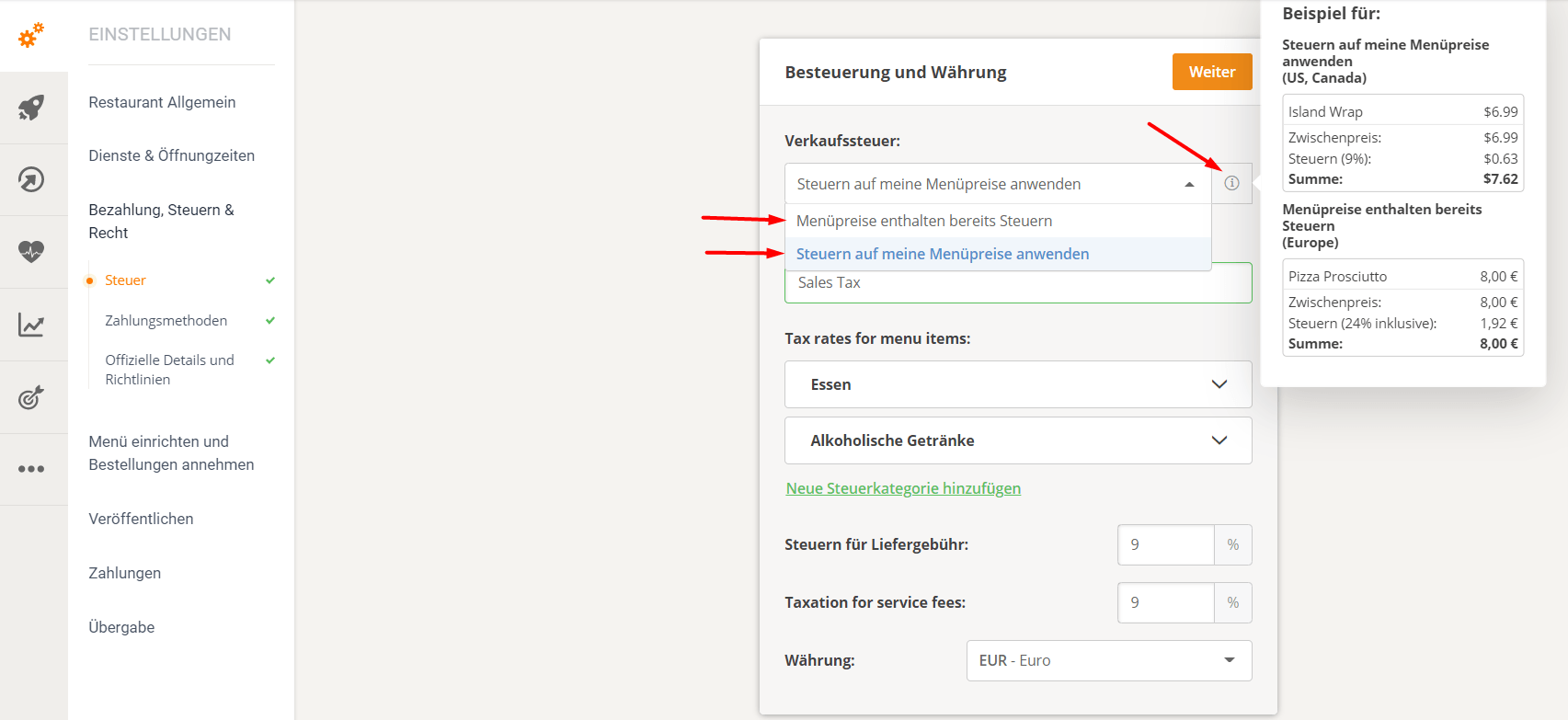
For example, if a restaurant is based in the USA/Canada, the sales tax is set to "Apply tax to my menu prices" by default, but this can easily be changed from the dropdown list to "Menu prices already include tax":
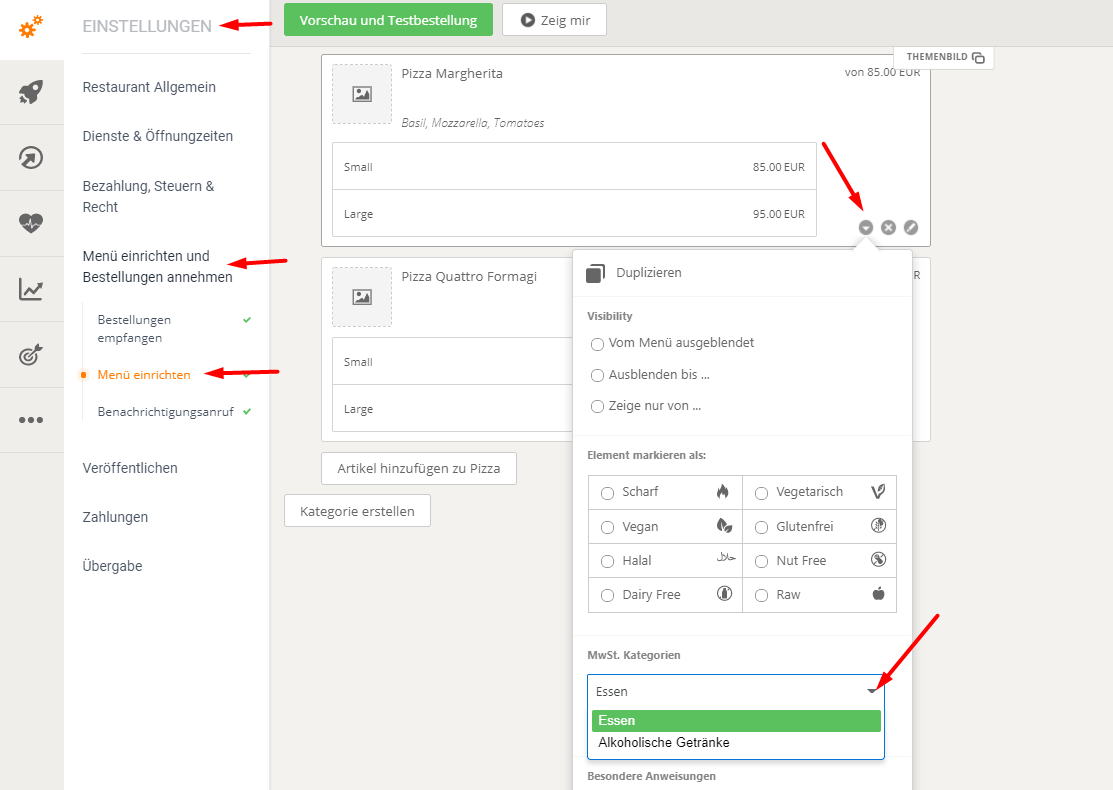
1. Create multiple tax categories, for example food and/or beverages:
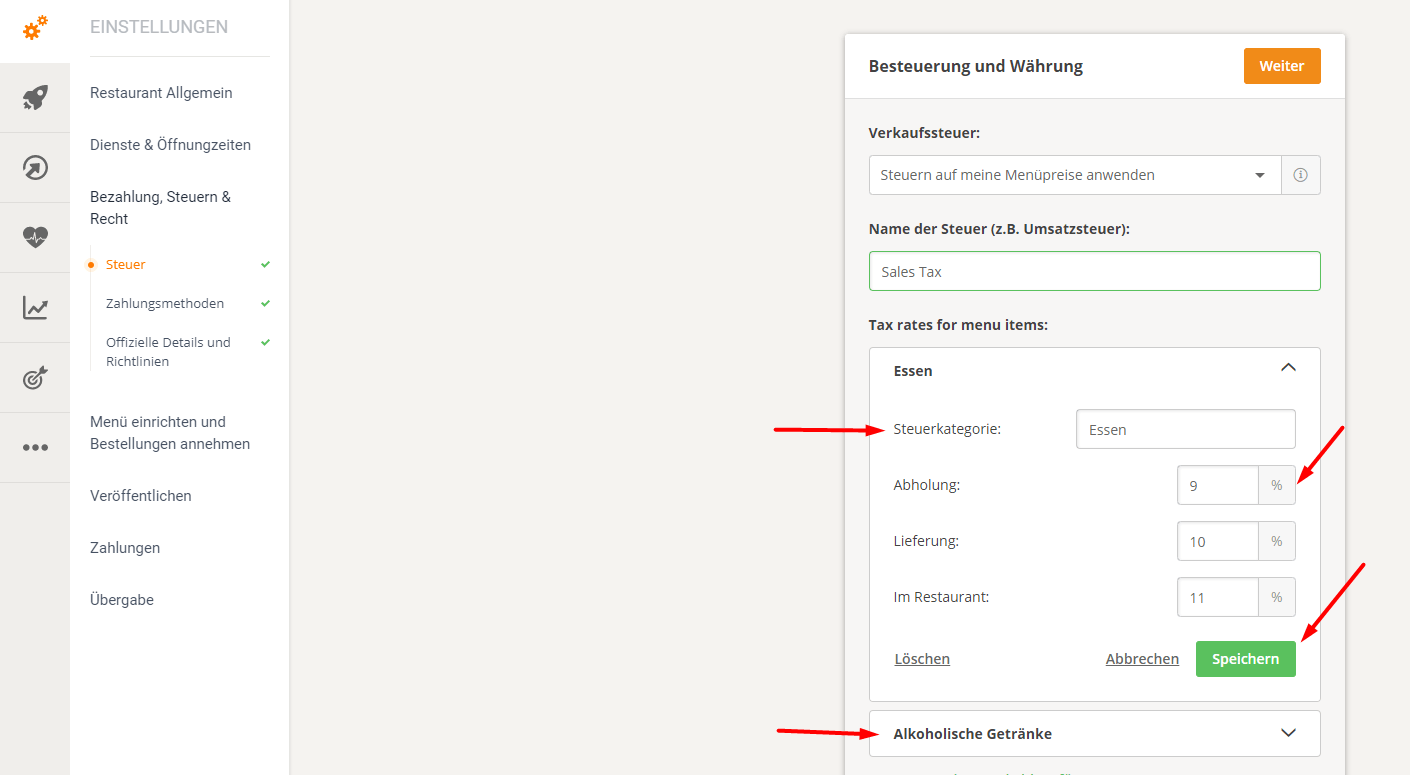
Here, items can be assigned to a specific category:
2. Change restaurant currency
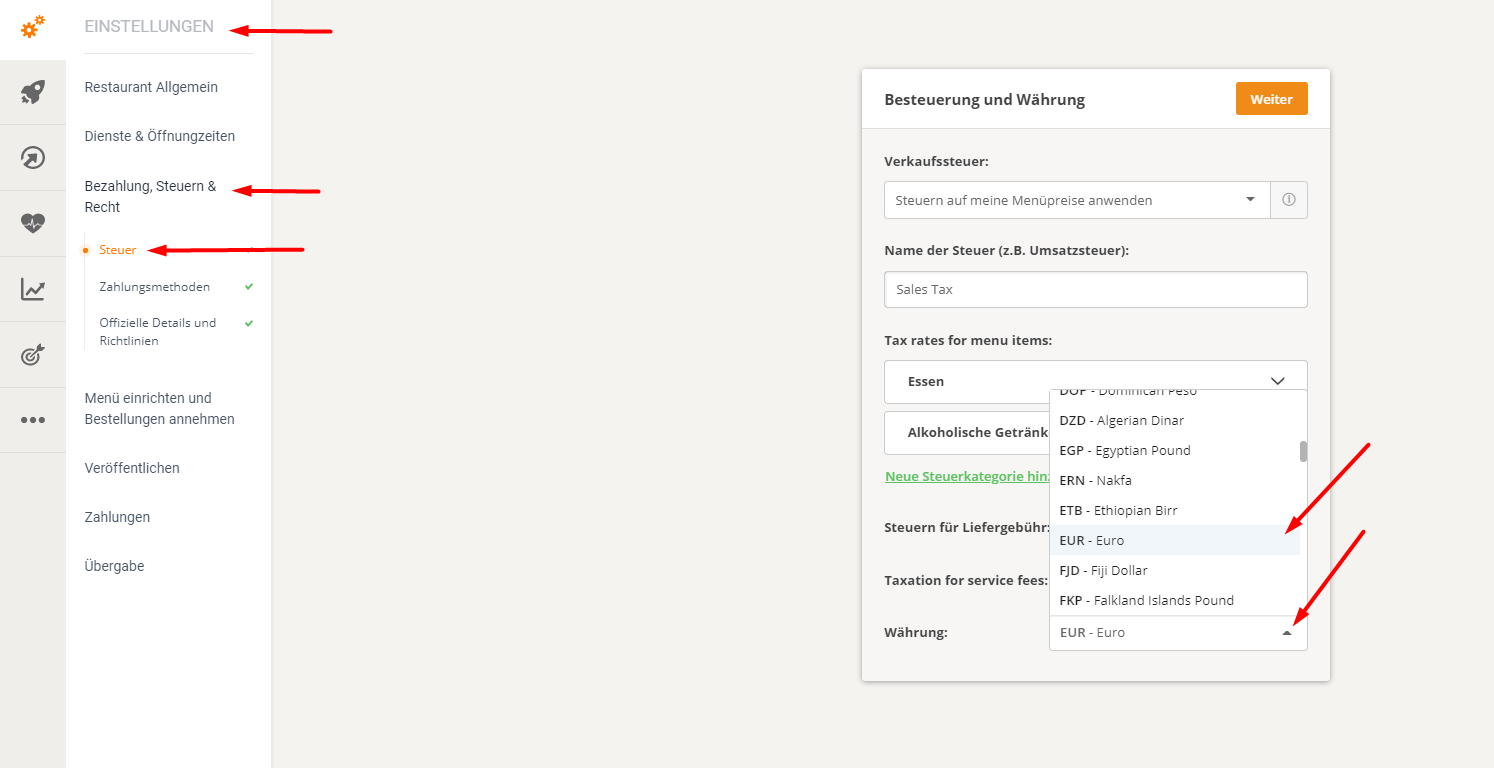
The currency should automatically be set according to the restaurant's country. However, you can also change your currency under Taxes -> Currency.
See below:
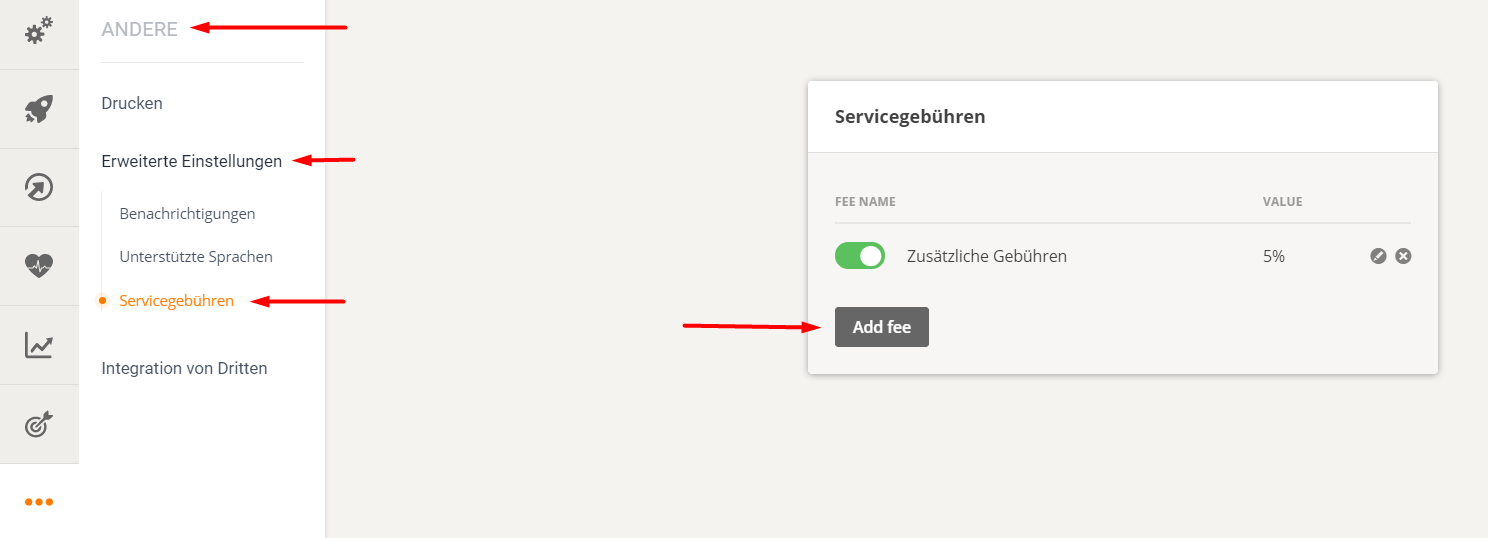
There is also an option to set additional service fees under Other -> Advanced Settings -> Service Fees -> Add Fee, as follows:
How to remove taxes
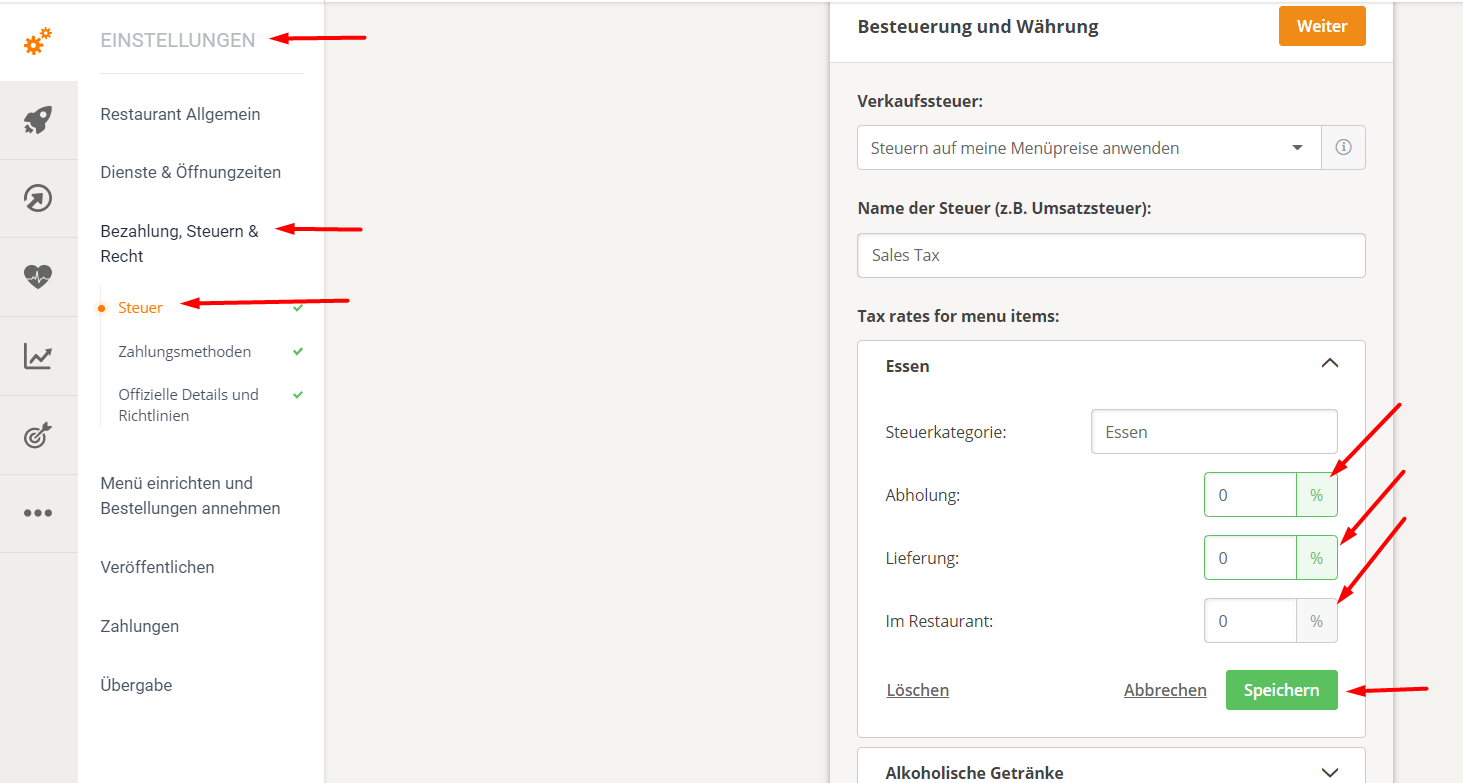
If the restaurant wants to remove taxes from all its menu items and services, it should access the Payment, Taxes & Legal section -> Taxes and set the tax rates to 0%. Something like this: